Working with DCC Alerts
Last edited: August 11th 2026
DCC Alerts monitor device data and notify selected recipients when configured conditions are met.
Alerts can be sent by email, SMS, and mobile push notification. They can also link directly to a Next-gen Dashboard, giving recipients immediate access to the affected device and the data around the alert trigger time.
DCC provides two ways to configure alerts:
- Quick Alerts are created for one specific device, collector, and sample point.
- Alert Groups are reusable configurations that can contain several alerts and be applied to multiple devices.
The two alert types share the same condition definitions. The main differences are how they are attached to devices, which data sources their conditions can use, and whether they can perform an action when triggered.
Choosing between Quick Alerts and Alert Groups
| Capability | Quick Alert | Alert Group |
|---|---|---|
| Typical use | A fast alert for one device and sample point | A reusable set of alerts for several devices |
| Device scope | Fixed during creation | Applied through the Configuration Schema |
| Data sources in one alert | One collector and sample point | Conditions can use different collectors and sample points |
| Multiple conditions | Yes, combined with AND | Yes, combined with AND |
| Multiple alerts in one configuration | No | Yes |
| Reuse | Cannot be moved or copied to another device | Can be applied to any compatible device |
| Manipulate a sample point | No | Yes |
Use a Quick Alert when you need a device-specific alert with minimal setup. Use an Alert Group when the same alert logic should be reused, several alerts should be deployed together, or one alert depends on several data sources.
Creating a Quick Alert
Quick Alerts can be created from the Quick Alerts menu or directly from Data Viewer.
Create from the Quick Alerts menu
To start from the Quick Alerts menu:
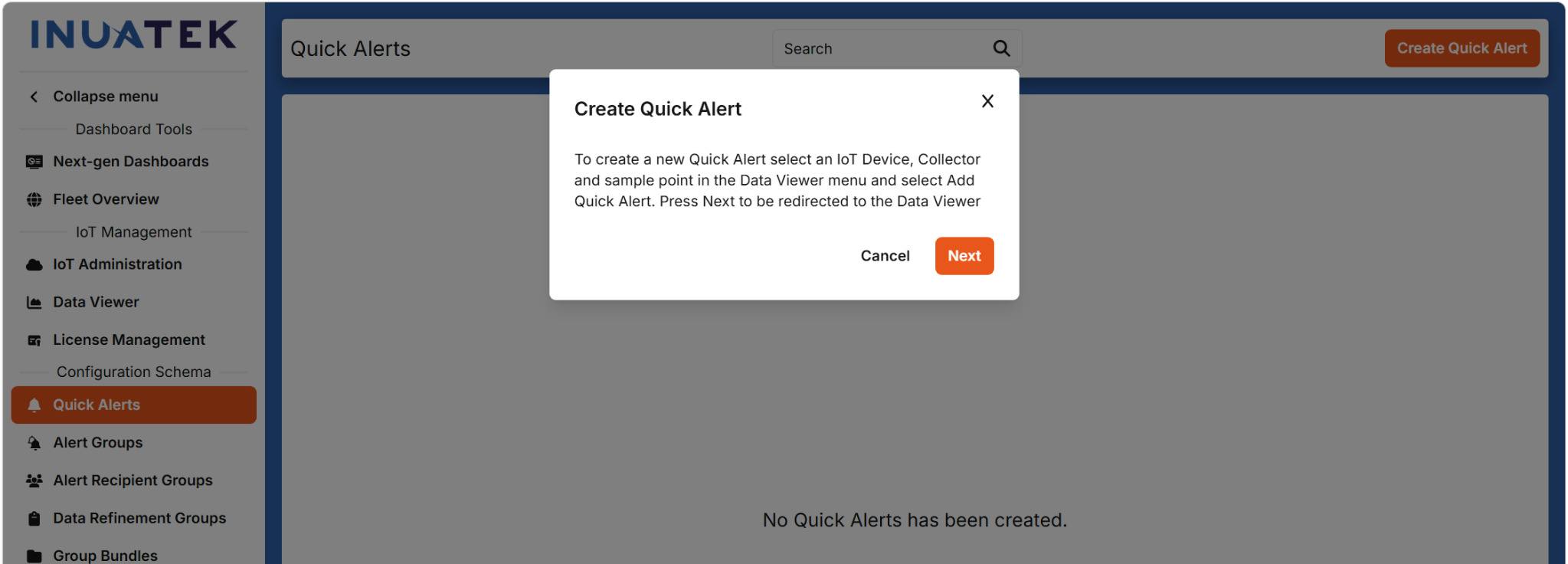
- Open Quick Alerts.
- Select Create Quick Alert.
- Select Next to open Data Viewer.
- Select the relevant device, collector, and sample point.
- Continue with the alert configuration.
Create from Data Viewer
To create a Quick Alert directly from Data Viewer:
- Open Data Viewer.
- Select the relevant device.
- Select the collector and sample point to monitor.
- Select Create Quick Alert.
- Enter a name for the alert.
- Configure the conditions and notifications.
- Select Save.
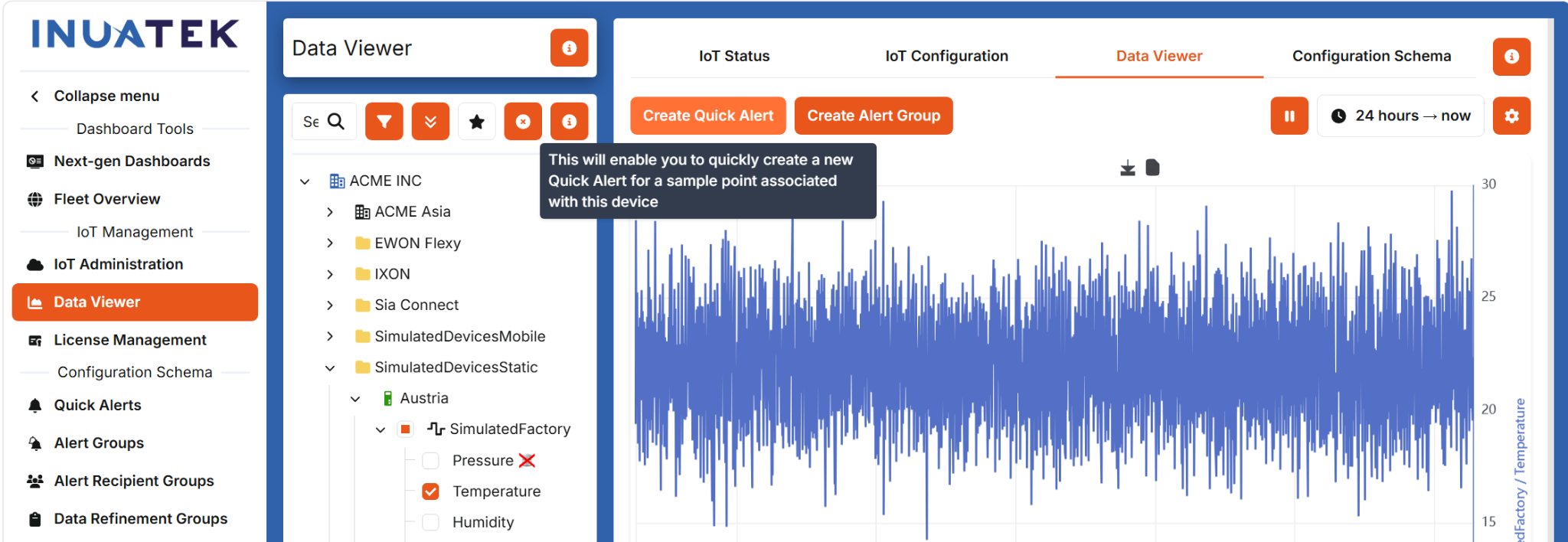
DCC automatically fills the selected device, collector, and sample point in the Quick Alert.
A Quick Alert remains linked to the device, collector, and sample point selected during creation. You can edit its conditions and recipients, but you cannot change its device or data source.
If the same logic is needed elsewhere, import the Quick Alert into an Alert Group and use it as a template.
Add multiple conditions
Select Add condition to add another condition to a Quick Alert.
All conditions in the alert are combined with AND. The alert can trigger only when every condition is met.
For a Quick Alert, every condition uses the same collector and sample point. This can be used to define a valid range or to combine several tests for the same signal.
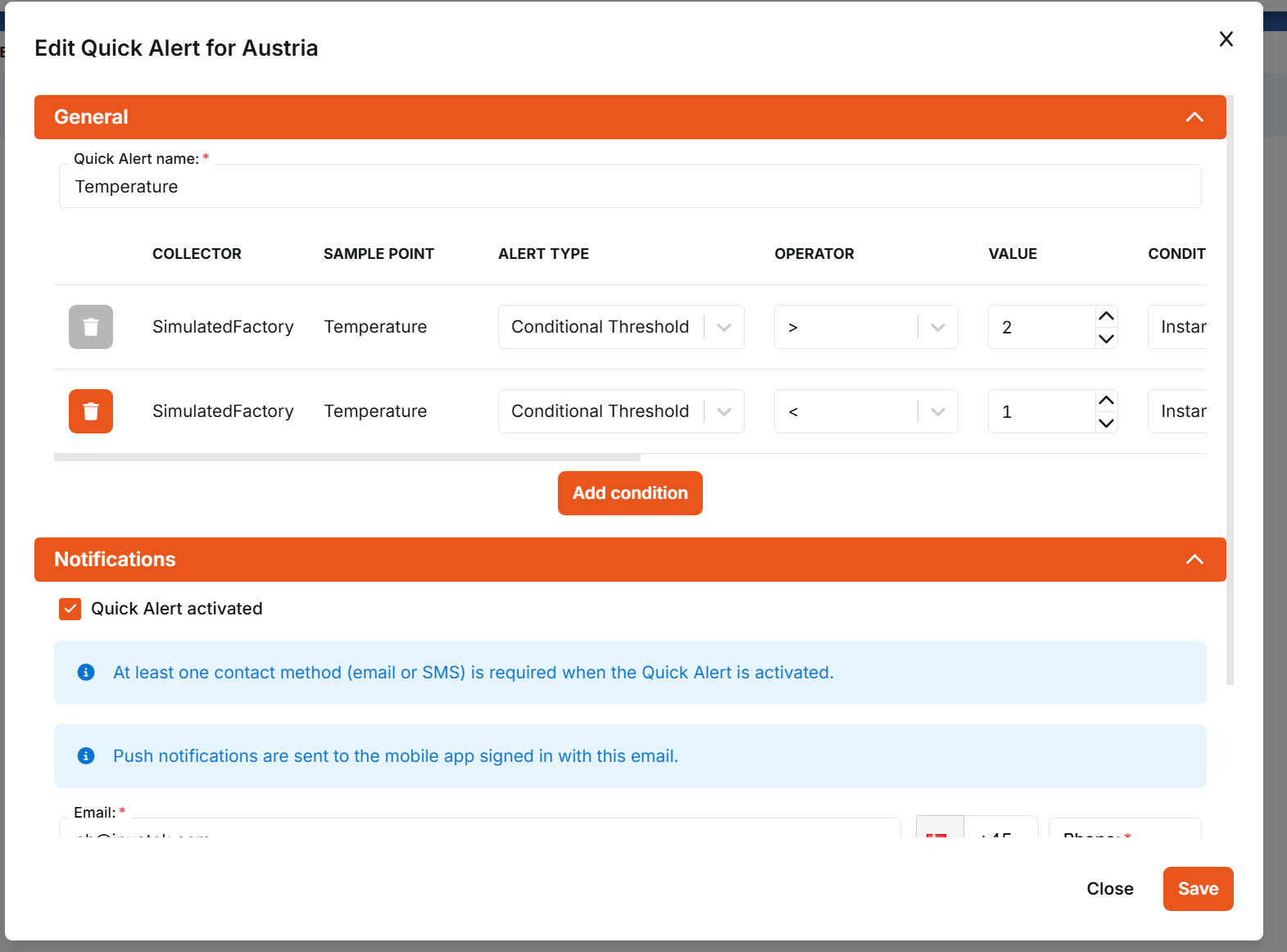
Make sure the combined conditions can be true at the same time. For example, > 1 together with < 2 defines a valid range. The example values > 2 and < 1 shown in the screenshot are only intended to illustrate the interface and cannot trigger together.
Configuring notifications
Enable Quick Alert activated when the alert should send notifications. At least one contact method is required for an activated Quick Alert.
Email, SMS, and mobile push notifications
- Enter an Email address to send an email alert.
- Enter a Phone number, including the correct country code, to send an SMS alert.
- Enter both when the recipient should receive both email and SMS.
Push notifications are associated with the configured email address. When a user signs in to the DCC mobile app with the same email address, alerts for that address are shown as mobile push notifications.
Link the alert to a Dashboard
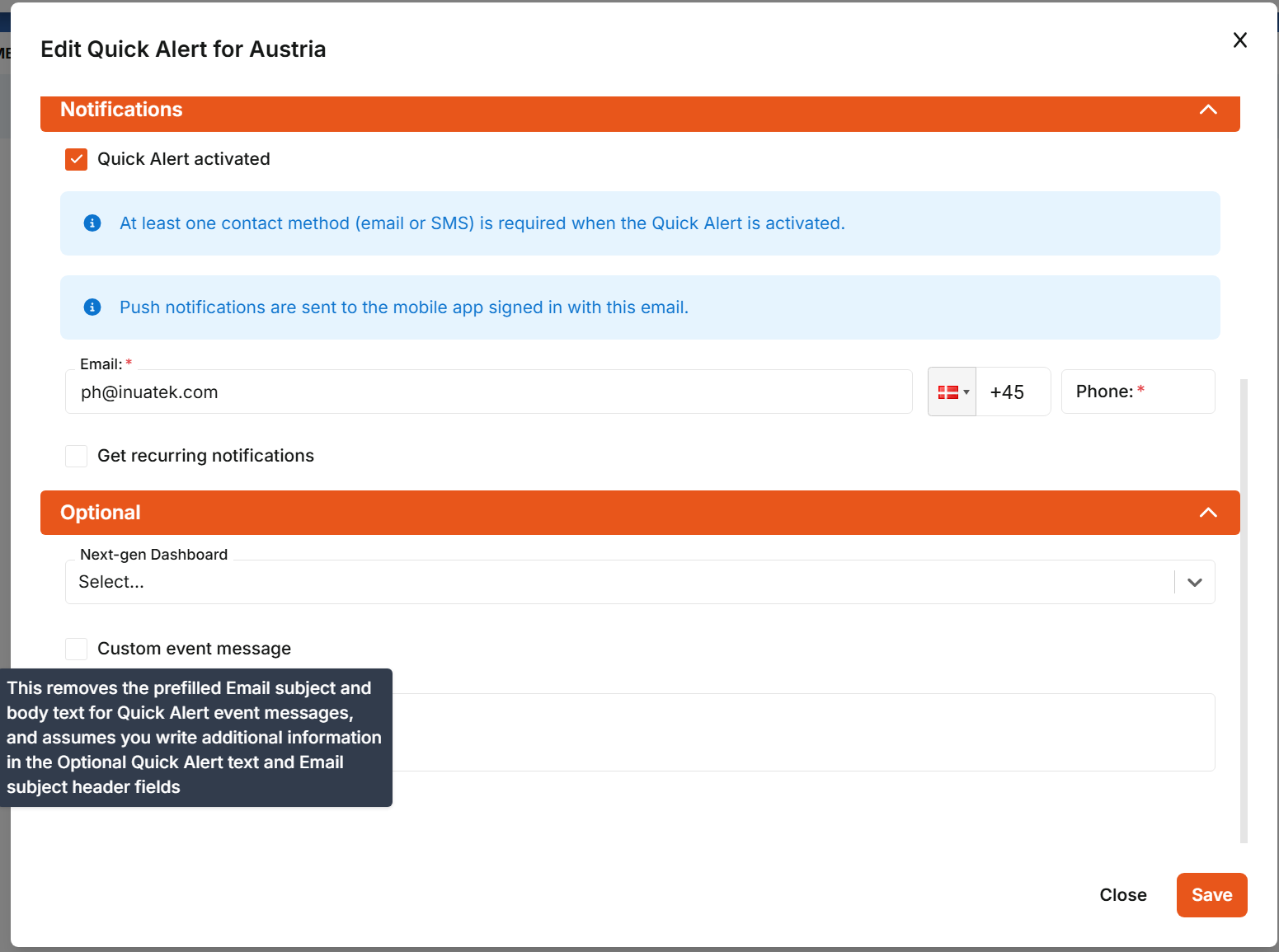
In the Optional section, select a Next-gen Dashboard to provide direct access to the relevant machine context.
The selected Dashboard is included as a link in the email alert and is opened when the recipient taps the mobile push notification. The Dashboard opens with a time period from one hour before until one hour after the trigger time.
Dashboard links are not included in SMS notifications.
For more information about opening alerts in the mobile app, see Introducing the Inuatek DCC mobile app.
Custom event message and Optional Quick Alert text
The Custom event message and Optional Quick Alert text settings change the notification content.
Custom event message
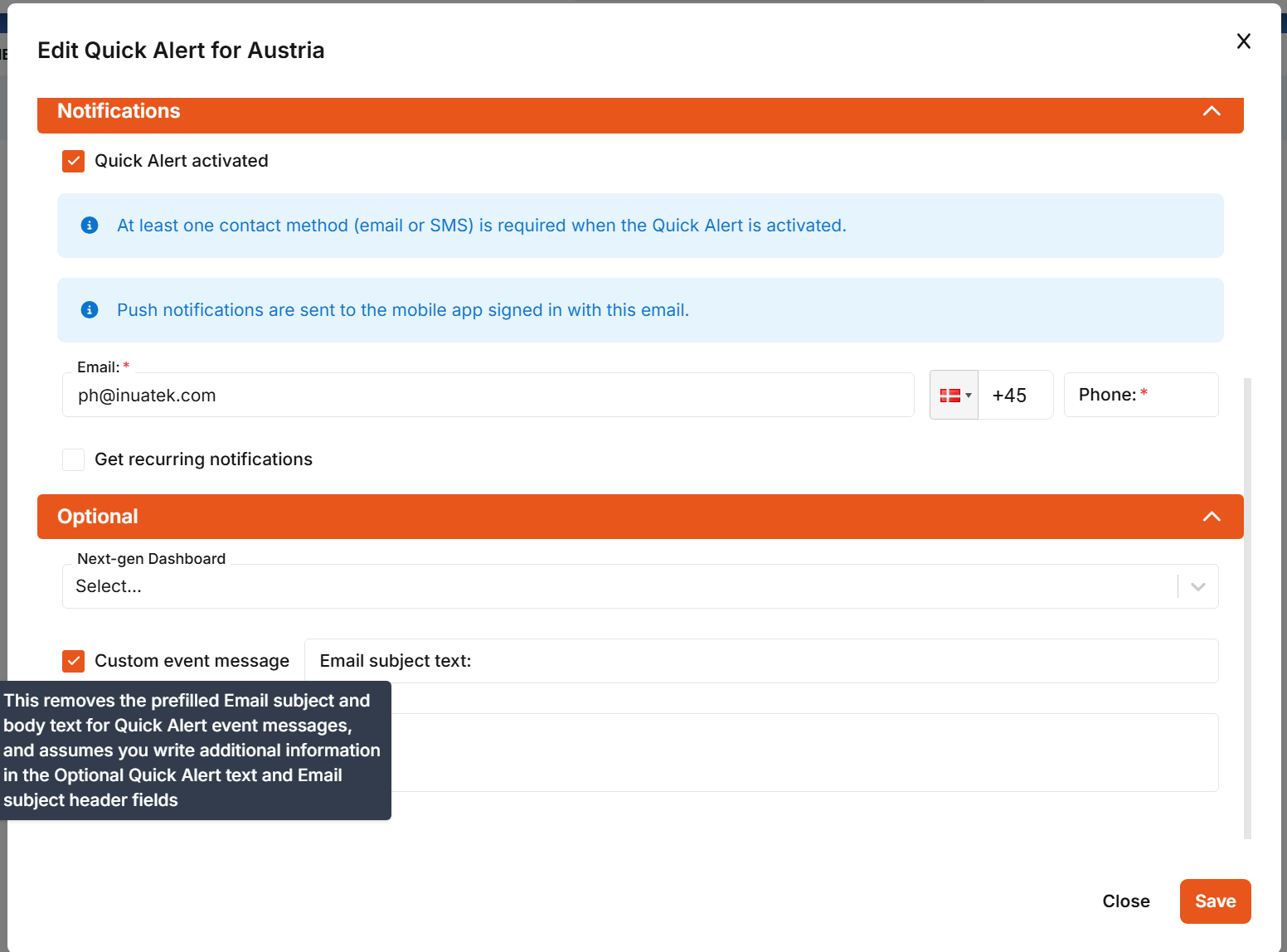
Enable Custom event message when you want to replace the standard DCC email subject and body.
When enabled, DCC removes the prefilled Quick Alert subject and body. Enter the required content in Email subject text and Optional Quick Alert text.
Optional Quick Alert text
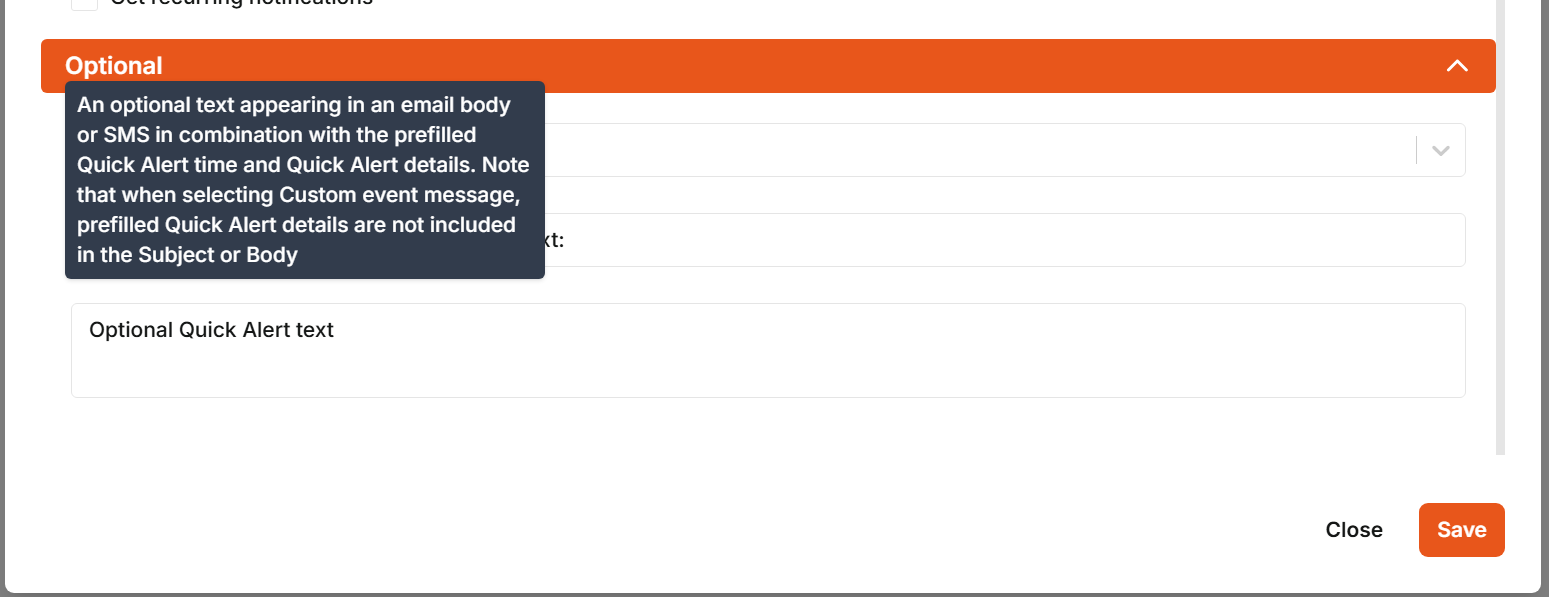
When Custom event message is not enabled, Optional Quick Alert text adds your text to the standard notification. The standard notification already contains the Quick Alert time and details.
When Custom event message is enabled, the standard Quick Alert details are not included in the subject or body. The optional text must therefore contain the information recipients need.
Keep the standard event message when recipients need the normal alert details and trigger time. Use a custom event message when the notification must follow a specific format or contain dedicated instructions.
Recurring notifications and throttling
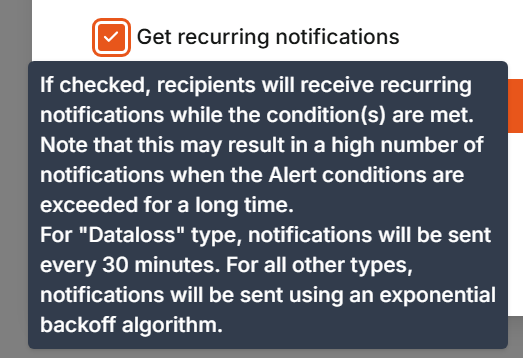
Enable Get recurring notifications when recipients should continue to receive reminders while the alert condition remains active.
Use recurring notifications carefully. A continuously active condition can generate several notifications.
Dataloss alerts
Recurring Dataloss notifications are sent every 30 minutes while the condition remains active.
Other alert types
For other alert types, DCC uses a progressive backoff to prevent notification flooding.
| Notifications already generated | Minimum wait before another notification |
|---|---|
| 0 | No additional wait |
| 1 | No additional wait |
| 2 | 5 minutes |
| 3 | 15 minutes |
| 4 or more | 30 minutes |
This means two notifications can be generated close together before the waiting period increases to 5 minutes, then 15 minutes, and finally 30 minutes. The waiting period is capped at 30 minutes.
The end of a waiting period does not create a notification by itself. DCC sends the next recurring notification when the alert is evaluated as active again after the waiting period.
The backoff level is reset only after the condition has remained cleared for the applicable reset period. If the condition repeatedly clears and returns before that period expires, DCC may retain the longer backoff level.
Throttling limits notification frequency. It does not change or clear the underlying alert condition.
Configuring alert conditions
Condition definitions are largely shared by Quick Alerts and Alert Groups.
The available fields depend on the selected Alert type. Fields that do not apply to the selected type are disabled.
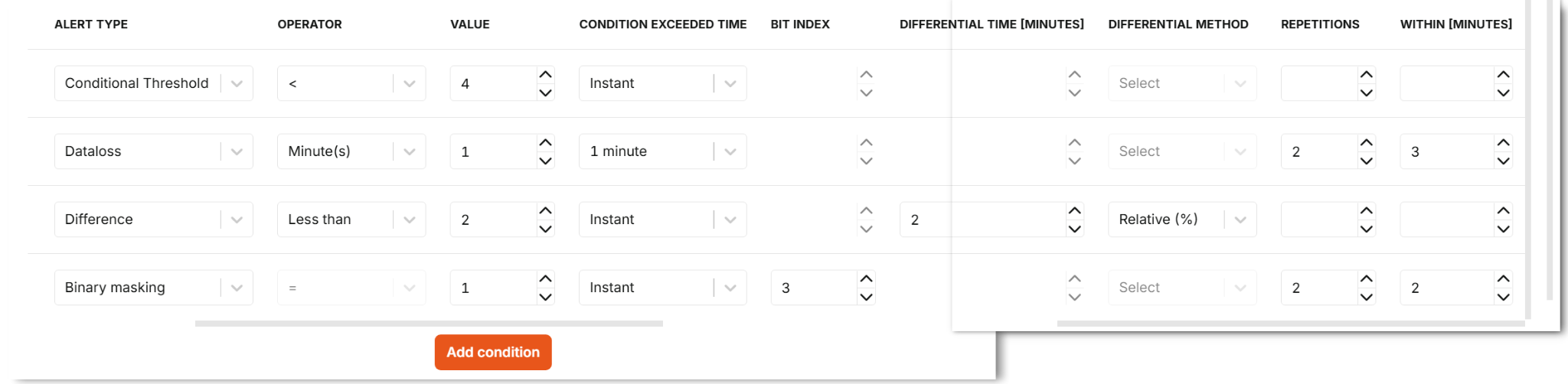
Conditional Threshold
Conditional Threshold is the most commonly used alert type. It compares the sample-point value with the configured value.
Available operators are:
=— equal to<— less than>— greater than<=— less than or equal to>=— greater than or equal to!=— not equal to
Example:
- Operator:
> - Value:
80 - Condition exceeded time:
5 minutes
The alert becomes eligible when the value remains above 80 for five minutes.
Dataloss
Use Dataloss when an alert should trigger because a sample point stops sending data.
For this alert type:
- Operator selects
Second(s),Minute(s), orHour(s). - Value defines the number of selected time units.
Example:
- Operator:
Minute(s) - Value:
2
The alert is triggered when the sample point has sent no data for two minutes.
Choose a period that is longer than the normal reporting interval. Otherwise, normal communication variation may generate unnecessary alerts.
Difference
Use Difference to detect a change in the sample-point value over a defined period.
Available operators are:
- Less than
- Greater than
- Greater or less than
Greater or less than can be used to detect a change in either direction.
The following additional fields apply:
- Differential time [minutes] — mandatory for Difference alerts. It defines the number of minutes in the comparison period.
- Differential method — select Absolute or Relative (%). Absolute is the default.
DCC evaluates whether the configured difference occurs within the specified differential period. Changes outside that period are not part of the comparison.
Use Absolute when the difference should be measured in the sample point's engineering unit. Use Relative (%) when it should be measured as a percentage.
Example:
- Operator: Greater than
- Value:
20 - Differential time:
5 - Differential method: Relative (%)
This configuration detects a relative change greater than 20 percent within the five-minute differential period.
Binary masking
Use Binary masking to evaluate an individual bit in an integer sample-point value.
For this alert type:
- Operator is fixed to
=. - Value selects the required bit state,
0or1. - Bit index selects which bit in the sample-point value to evaluate.
Example:
- Bit index:
3 - Value:
1
The condition is met when bit 3 is set.
Use a non-negative whole number for Bit index.
Condition timing and occurrence controls
The following optional settings can be used with all alert types.
Condition exceeded time
Condition exceeded time defines how long the condition must remain true before the alert is triggered.
Available values are:
- Instant
- 1 minute
- 5 minutes
- 10 minutes
- 30 minutes
- 60 minutes
Use this setting to prevent short, harmless excursions from generating an alert.
Example:
A machine may briefly exceed its normal temperature while starting. Setting Condition exceeded time to 5 minutes prevents an alert unless the high temperature continues for five minutes.
Repetitions and Within [minutes]
Use Repetitions together with Within [minutes] when the condition must be met several times during a defined period before the alert is triggered.
Example:
- Repetitions:
3 - Within [minutes]:
10
The alert becomes eligible when the condition is met three times within ten minutes.
This can be useful for:
- Three failed start attempts within ten minutes.
- Repeated short pressure drops.
- Several overload events during a production cycle.
- Repeated communication interruptions that recover by themselves.
The repetition rule filters isolated events while still detecting a recurring problem.
Use positive whole numbers for Repetitions and Within [minutes]. Negative values do not have a meaningful interpretation and should not be used.
Creating and configuring Alert Groups
An Alert Group can contain several alerts and can be applied to any compatible device.
Alert Groups are useful when:
- The same alert logic should be used on several devices.
- Related alerts should be deployed together.
- One alert depends on several collectors or sample points.
- An alert should manipulate an existing sample point when it triggers.
Use conditions from different data sources
All conditions inside one Alert Group alert are combined with AND.
Unlike a Quick Alert, each condition can use a different collector and sample point. For example, an alert can require both a high humidity value and a temperature below a configured threshold.
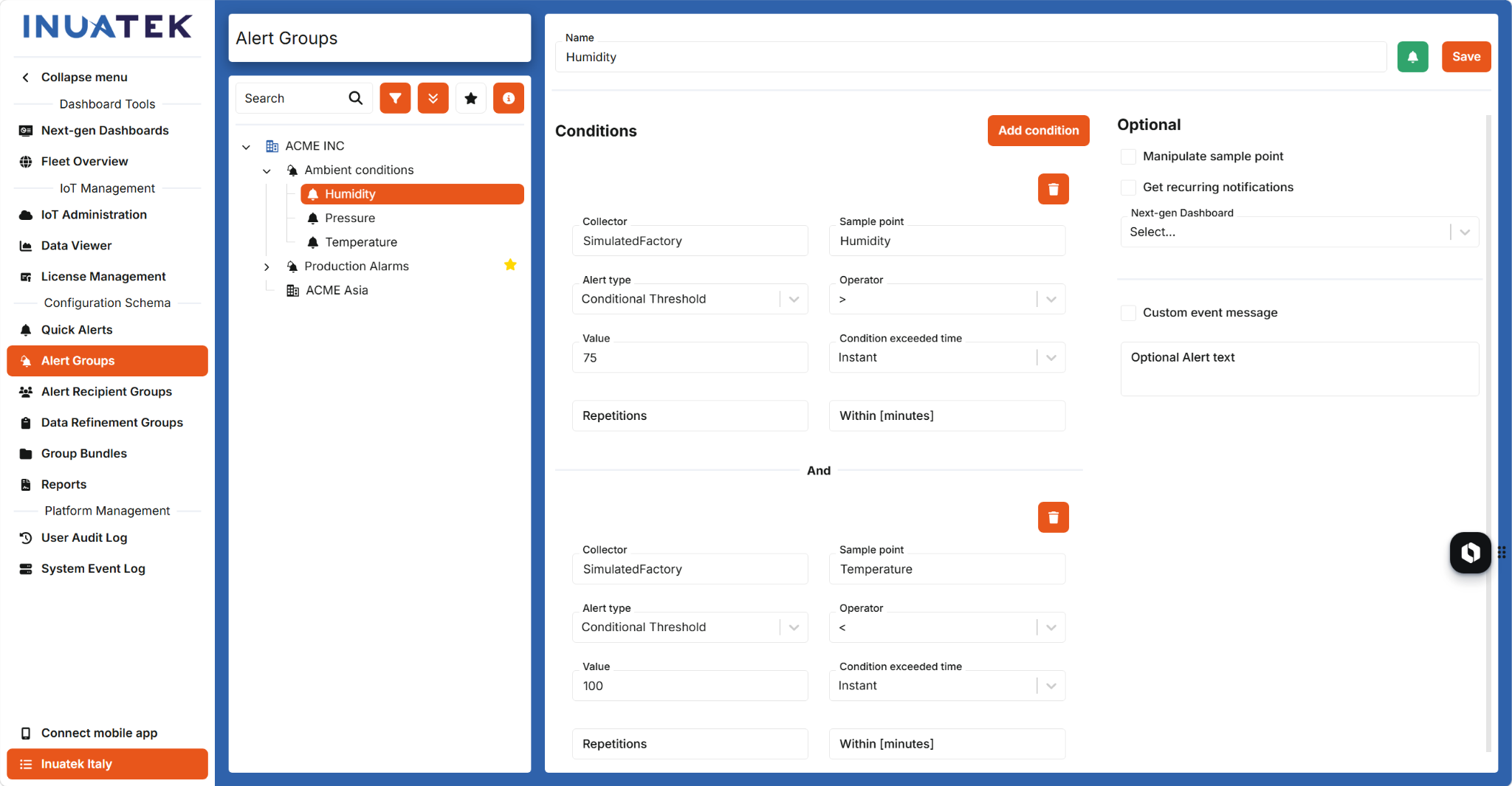
When the Alert Group is applied to a device, DCC automatically matches the configured collector and sample-point names with the names available on that device.
If a name does not match, map the condition manually to another collector or sample point on the device.
Manipulate a sample point
Manipulate sample point is available for Alert Group alerts, but not for Quick Alerts.
When the alert triggers, DCC uses the trigger value as input, applies a simple arithmetic operation, and writes the result to an existing sample point.
Configure:
- The target Collector Name.
- The target Sample Name.
- The operator:
+,-,*, or/. - The value used by the operation.
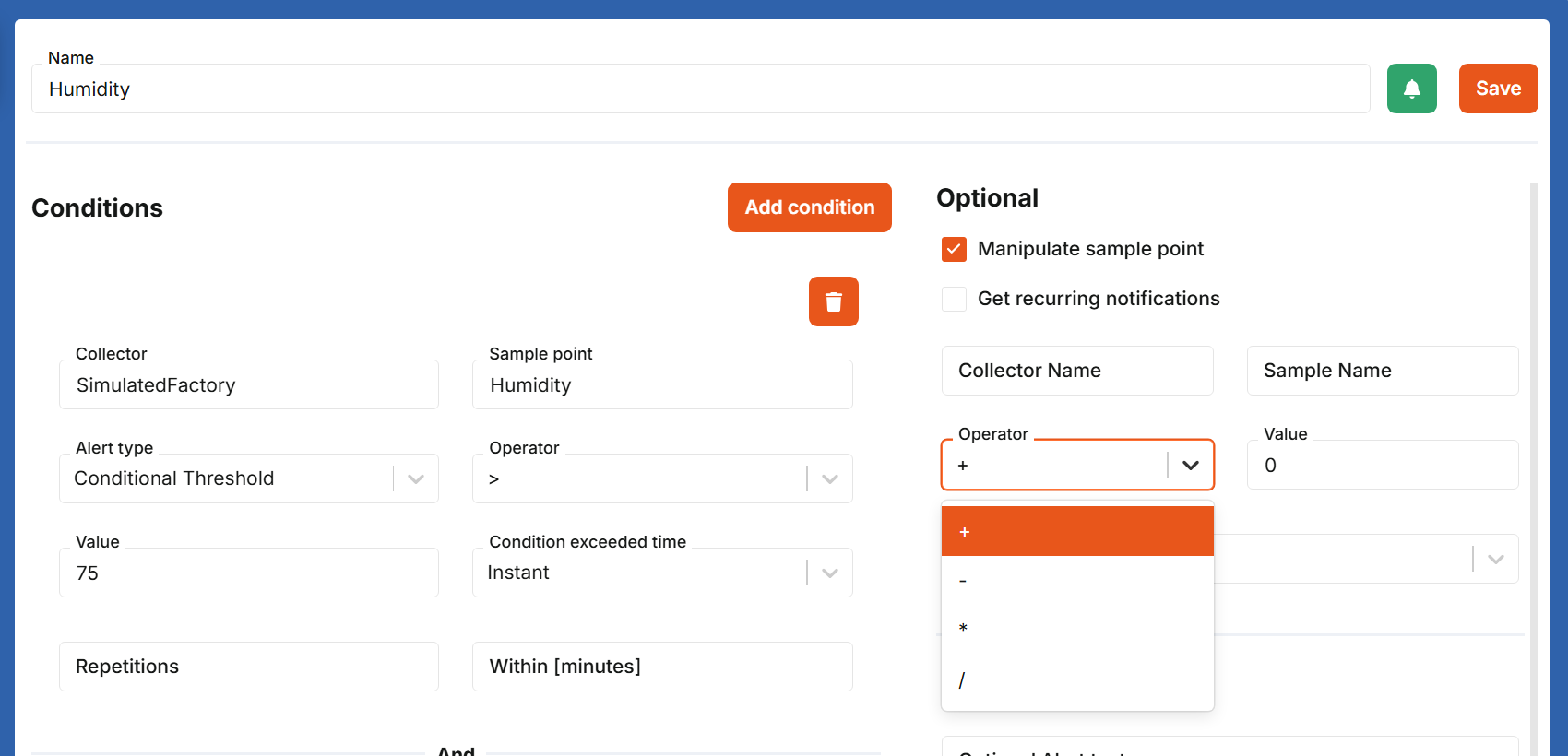
Examples include:
- Converting a triggering binary value of
1back to0, for example by multiplying it by0. - Writing an adjusted value to an existing indicator sample point.
- Recording a simple numeric indication that the trigger condition was met.
The action writes to an existing collector and sample point; it does not create a new sample point.
Sample-point manipulation changes data when the alert triggers. Verify the target, operator, and result in a controlled environment before enabling the alert. Do not divide by zero.
View attached devices
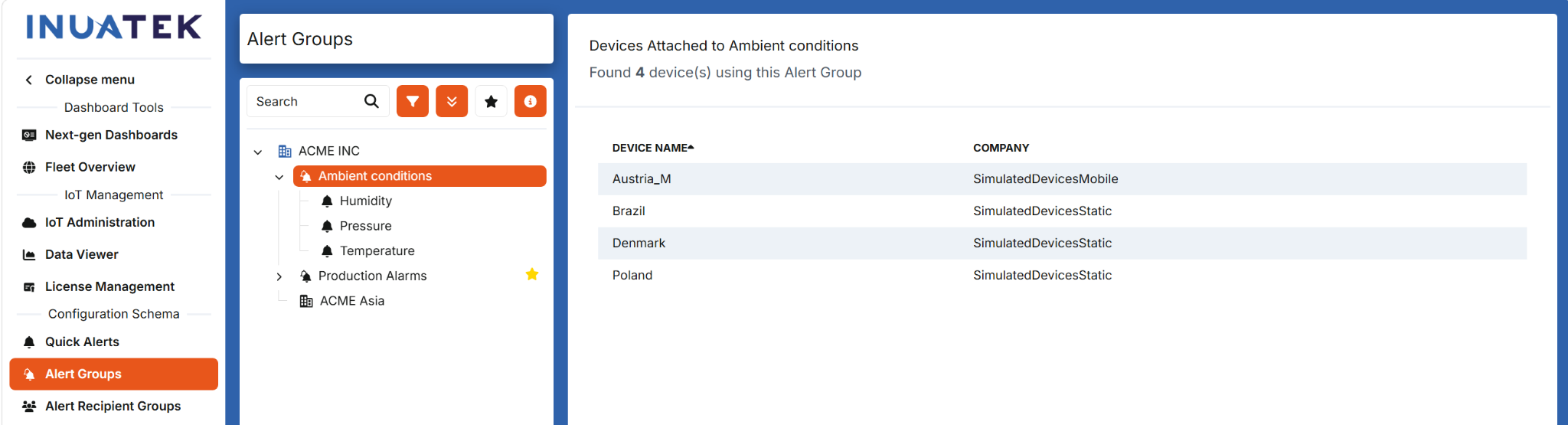
Select an Alert Group to see all devices where the group is currently applied.
Select a device in the list to open that device directly.
Import a Quick Alert as a template
An existing Quick Alert can be imported into an Alert Group and used as a template.
To import a Quick Alert:
- Open Alert Groups.
- Open the menu for the relevant Alert Group.
- Select Import Quick Alert.
- Select the Quick Alert to import.
- Continue editing the imported alert in the Alert Group.
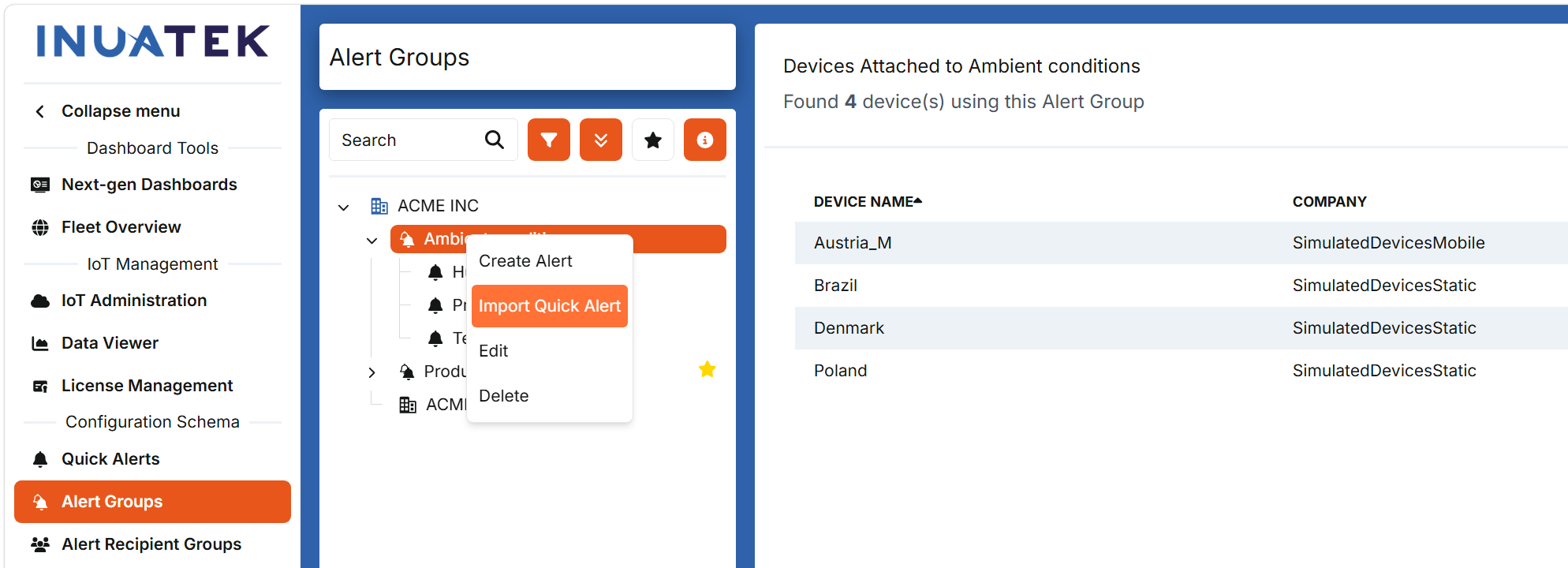
The imported alert is an independent copy. Importing it does not change the original Quick Alert. Later changes made to either configuration are not transferred to the other.
Adding an Alert Group to a device
The process for adding an Alert Group to a device is the same principle used for Data Refinement Groups and Reports.
To add an Alert Group:
- Go to IoT Administration.
- Select the relevant device.
- Open the Configuration Schema tab.
- Select the Add button.
- Select Add Alert Group.
- Select the Alert Group to add.
- Review the condition mappings and recipients.
- Save the Configuration Schema.
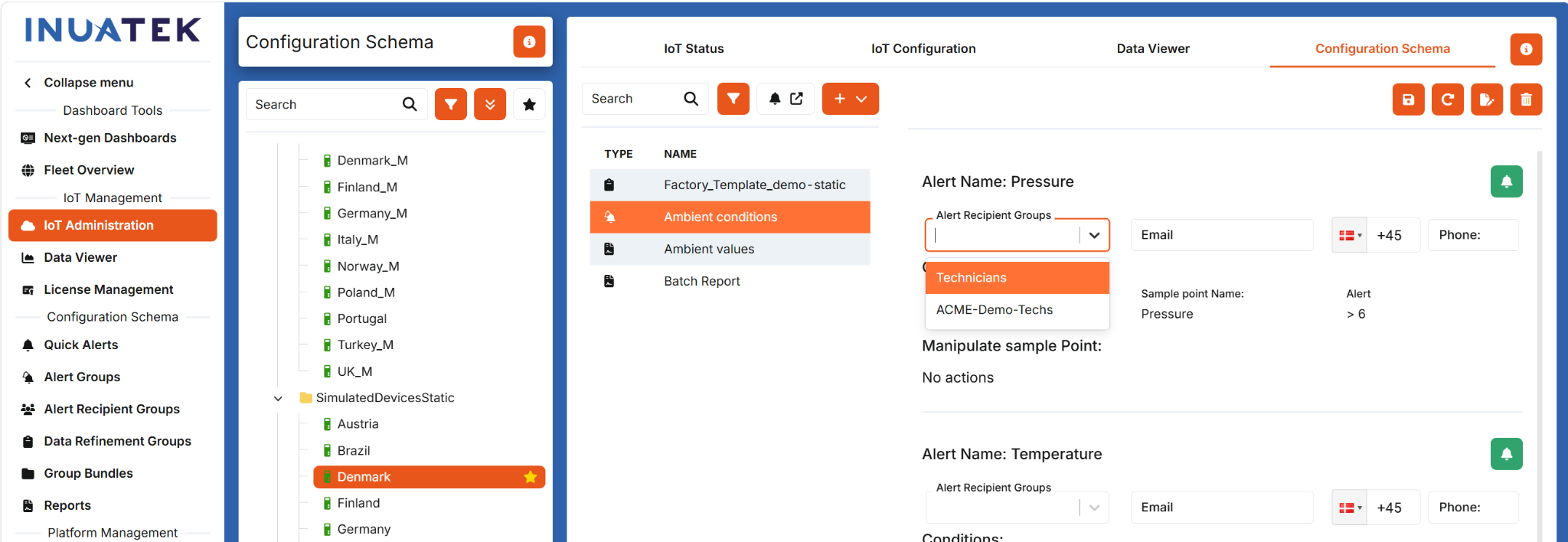
After the Alert Group has been added, all alerts in the group are available for the device.
Review condition mappings
DCC attempts to match every collector and sample-point name automatically.
If an automatic match is not possible, manually select the collector and sample point that should be used for the condition on this device.
Review every condition after applying the group, especially when devices use different naming conventions.
Configure recipients
Configure the recipients separately for the selected device.
You can use:
- Email addresses.
- Phone numbers for SMS.
- Alert Recipient Groups.
Alert Recipient Groups are useful when several alerts or reports should use the same service team or customer contacts.
For a comparable device-assignment procedure, see Adding a report to a device.
Recommended alert-management practices
Avoid alerts for normal process variation
Use Condition exceeded time when short threshold violations are expected during normal operation.
Use Repetitions and Within [minutes] when a single occurrence is harmless but repeated occurrences require attention.
Select meaningful Dataloss periods
Account for the normal reporting interval, network latency, and expected communication variation.
For example, a device that normally sends data every 60 seconds should not normally use a one-minute Dataloss threshold.
Use recurring notifications only when reminders are required
Recurring notifications are appropriate for conditions that must remain visible until someone acts. Leave the option disabled when one notification per alert episode is sufficient.
Make notifications actionable
Where possible:
- Link the alert to a relevant Dashboard.
- Include the machine, fault, and expected action in the message.
- Use recipient groups to make ownership clear.
- Avoid sending every alert to every user.
Test before broad deployment
Before applying an Alert Group to many devices, test it on one representative device and verify:
- Collector and sample-point mappings.
- Operators and values.
- Exceeded-time and repetition behavior.
- Notification recipients and message content.
- Dashboard links and mobile push notifications.
- Recurring-notification behavior.
- Any sample-point manipulation.
Troubleshooting
An alert is not generated
Check that:
- The alert is activated.
- The Alert Group is applied to the relevant device.
- Every collector and sample point is mapped correctly.
- Every condition combined with AND is true.
- Condition exceeded time has elapsed.
- The configured Repetitions occurred within Within [minutes].
- The alert is not being suppressed by recurring-notification backoff.
- The device is sending the data required to evaluate the condition.
The notification is delayed
Check:
- Condition exceeded time.
- Repetitions and Within [minutes].
- The recurring-notification waiting period.
- Whether the condition cleared long enough to reset the backoff level.
Too many notifications are generated
Consider:
- Disabling Get recurring notifications.
- Increasing Condition exceeded time.
- Using Repetitions and Within [minutes].
- Adjusting the threshold so normal variation does not meet the condition.
- Increasing the Dataloss period.
- Reviewing whether every recipient needs the notification.
A Quick Alert uses the wrong data source
The device, collector, and sample point of a Quick Alert cannot be changed after creation. Create a new Quick Alert from the correct sample point, or import the original into an Alert Group and edit the imported copy.
Standard alert details are missing from the message
Check whether Custom event message is enabled. This option removes the standard Quick Alert subject and body. Add the required information to Email subject text and Optional Quick Alert text, or disable the custom event message.
A push notification is not received
Check that:
- The mobile app user is signed in with the same email address used by the alert.
- Push notifications are allowed for the DCC mobile app on the device.
- The alert is activated and is generating email notifications for that address.
An Alert Group works on one device but not another
Compare the collector and sample-point mappings. If the configured names do not match automatically, manually map each affected condition on the device.