Working with DCC Assets
Last edited: October 7th 2026
An asset represents a machine, production line, or other logical unit whose data is collected through an IoT device. Assets make it possible to separate the data from several machines connected through the same gateway without creating an IoT device for each machine.
Assets appear below their parent IoT device in the DCC tree. Each sample point can belong to one asset, while sample points that are not assigned to an asset remain available directly under the IoT device.
Purpose and scope
Assets help you work with the equipment behind a gateway rather than treating the entire gateway as one machine. For example, you can represent each production line as an asset when one gateway communicates with several PLCs. You can also separate sample points from a single PLC or collector into assets representing different machines.
An asset always belongs to exactly one parent IoT device or gateway. It can group sample points from one or more collectors belonging to that gateway, but it cannot combine data from different gateways. Each sample point can belong to only one asset.
Assets remain within the parent gateway's existing access-rights boundary. They do not provide separate access control for individual machines sharing that gateway. You can continue using a gateway without configuring assets.
Beta availability and current limitations
DCC 7.4 introduces Assets as a Beta feature. This first iteration, MVP1, provides the initial functionality for creating and removing assets, viewing their data, using them in Next-gen and Fleet Dashboards, and applying reusable Data Refinement Groups. The Beta label reflects the limited scope of this first iteration, with further asset support planned across DCC.
Assets can be used in the areas described in this guide, but they do not yet have the same functionality as IoT devices throughout DCC.
In this Beta:
- Configuration: Assets and their sample assignments are defined through
SampleGroupin the parent IoT device's JSON configuration. A dedicated graphical interface for managing assets is planned for a later iteration. - Filtering: Dedicated filtering to include or exclude assets is not yet available.
- Search: Assets can currently be searched for by name only. Searching by other asset properties is not yet supported.
- Other modules: Asset support for alerts, alert groups and reports is planned for later iterations and is not part of MVP1.
The planned development areas are listed under Planned extensions and feedback.
Creating assets from the IoT Configuration
Assets are created from the IoT device's JSON configuration. Add the SampleGroup field to each sample point that should belong to an asset. Sample points with the same asset identity are grouped into the same asset.
The recommended format is:
$ID<asset ID>$<asset name>|<sample display name>
The asset ID and sample display name are optional:
SampleGroup value | Result |
|---|---|
Packaging line 1 | Creates an asset named Packaging line 1. The asset is identified by its name. |
Packaging line 1|Temperature | Uses the name-based asset and displays this sample as Temperature. |
$ID101$Packaging line 1 | Creates an asset named Packaging line 1 with the stable ID 101. |
$ID101$Packaging line 1|Temperature | Uses the same asset and displays this sample as Temperature. |
The $ID...$ prefix is recommended. The ID must contain digits and must be unique within the parent IoT device. It keeps the asset identity stable if its name changes. When no ID is supplied, the asset-name portion before | is used as its identity.
The text after | is the name shown for that sample under the asset. If it is omitted, DCC displays the sample's SampleName instead.
SampleGroup, $ID, and the surrounding $ characters are case-sensitive. Use the same ID and asset name for every sample point that belongs to the same asset.
Example configuration
The following configuration creates two assets below one IoT device. The cabinet temperature has no SampleGroup, so it remains a sample point on the IoT device itself.
{
  "ConfigName": "Factory gateway",
  "ConfigDescription": "Data from two packaging lines",
  "Collectors": [
    {
      "CollectorName": "PLC",
      "CollectorDescription": "Packaging line PLC",
      "SamplePoints": [
        {
          "SampleName": "Line1Temperature",
          "SampleDataType": "float",
          "SampleUnit": "°C",
          "CustomNameIndex": 1,
          "SampleGroup": "$ID101$Packaging line 1|Temperature"
        },
        {
          "SampleName": "Line1Speed",
          "SampleDataType": "uint16",
          "SampleUnit": "items/min",
          "CustomNameIndex": 2,
          "SampleGroup": "$ID101$Packaging line 1|Speed"
        },
        {
          "SampleName": "Line2Temperature",
          "SampleDataType": "float",
          "SampleUnit": "°C",
          "CustomNameIndex": 3,
          "SampleGroup": "$ID102$Packaging line 2|Temperature"
        },
        {
          "SampleName": "CabinetTemperature",
          "SampleDataType": "float",
          "SampleUnit": "°C",
          "CustomNameIndex": 4
        }
      ]
    }
  ]
}
This produces the following structure:
Factory gateway
├── Packaging line 1
│   ├── Temperature
│   └── Speed
├── Packaging line 2
│   └── Temperature
└── PLC
    └── CabinetTemperature
The display names do not change how incoming data is matched. DCC continues to use the original CollectorName and SampleName to identify the data.
Apply the configuration
To create or update the assets:
- Open IoT Administration and select the parent IoT device.
- Open the IoT Configuration tab.
- Add or update the
SampleGroupfields in the JSON. You can also edit the file in another editor and use Import. - Select Save.
- Refresh the tree if the assets do not appear immediately. Processing a new configuration may take up to 30 seconds.
Using assets in DCC
After an asset has been created, it can be used in much the same way as an IoT device:
- In Data Viewer, expand the parent IoT device and select sample points from an asset to inspect its data.
- In a Next-gen Dashboard widget, select the asset and then select one or more of its sample points as data sources.
- In Fleet Dashboards, assets appear at the same level as their parent IoT device and other devices. Selecting an asset can open a Next-gen Dashboard with that asset as its data context.
- In the Dashboard settings, an asset can be selected as the default IoT device or asset.
- In IoT Administration, select an asset to configure reusable Data Refinement Groups through the Configuration Schema.
An asset's sample points are displayed as one list, even when the underlying sample points come from different collectors.
Recognising assets in Data Viewer
Assets are shown below their parent IoT device with a stacked-layer symbol. Expand an asset to select its sample points. Collectors are shown with a waveform symbol, so you can distinguish assets from the gateway's original collector structure.
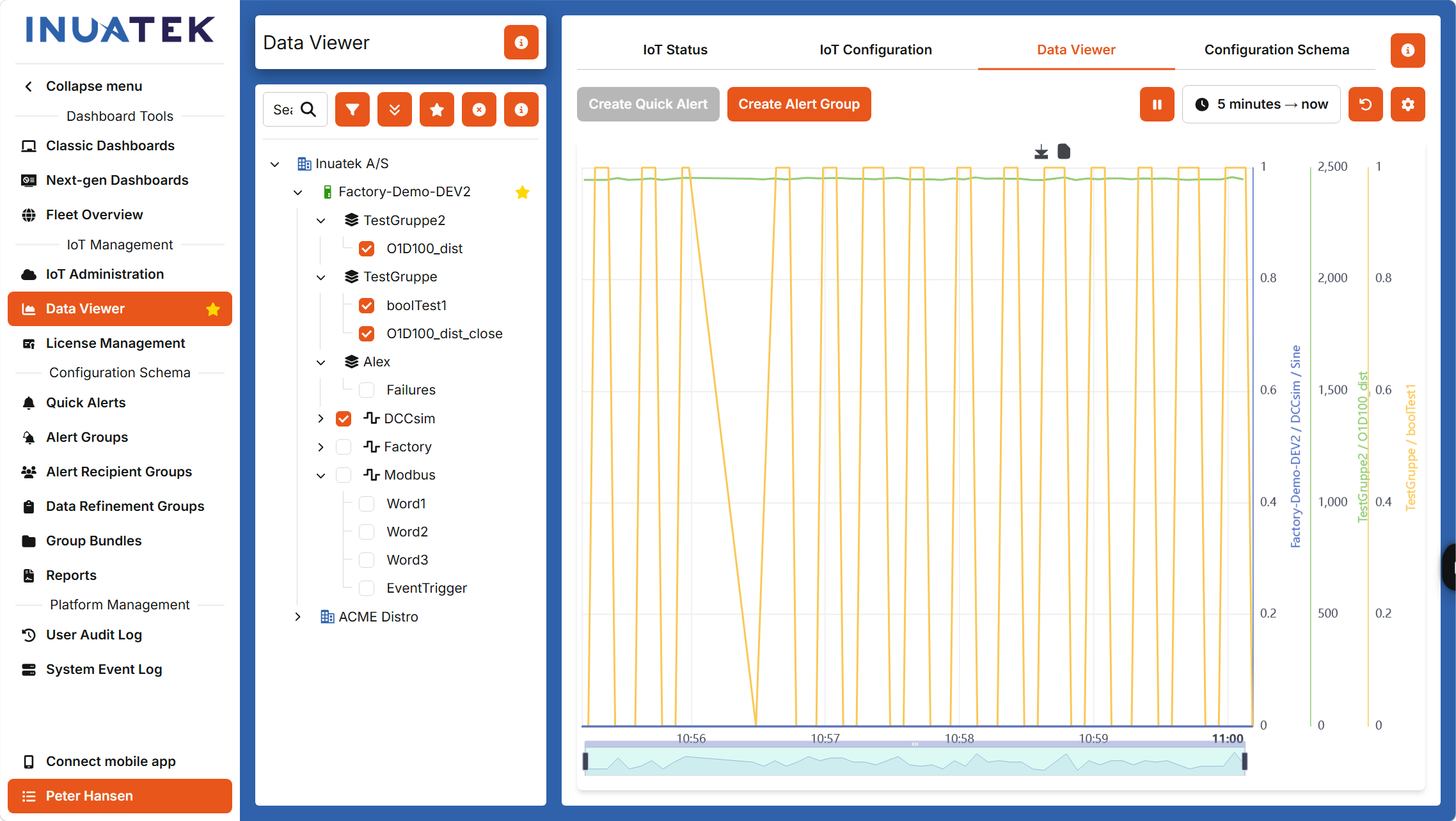
In this example, TestGruppe2, TestGruppe and Alex are assets below Factory-Demo-DEV2. The selected sample points are plotted on the right. The collectors DCCsim, Factory and Modbus are also visible below the same parent device.
Renaming, moving, and removing assets
Rename an asset
For an asset with a stable ID, change only the asset-name part of every matching SampleGroup value. For example:
$ID101$Packaging line 1|Temperature
can be changed to:
$ID101$Primary packaging line|Temperature
DCC recognizes ID 101 and renames the existing asset. If an asset has no stable ID, changing its name creates a new asset and leaves the old asset in place.
Move or ungroup a sample point
Change a sample point's SampleGroup to move it to another asset. Remove the SampleGroup field to remove its asset assignment and show it under the parent IoT device again.
Delete an asset
Removing all references to an asset from the JSON configuration does not automatically delete the asset itself. To delete it, right-click the asset in IoT Administration, select Delete asset, and confirm the deletion.
Remove the asset's SampleGroup references from the IoT Configuration before deleting it. Otherwise, DCC recreates the asset the next time the configuration is updated.
Deleting an asset also removes its sample mappings and its assignments to Data Refinement Groups and reports. Dashboard references that use the asset are also removed or cleared.
Planned extensions and feedback
The Beta is the first step in extending the asset model across DCC. The following development areas are planned after MVP1:
| Iteration | Planned development area |
|---|---|
| MVP2 | Asset support for alerts and alert groups. |
| MVP3 | Asset support for reports. |
| MVP4 | A graphical user interface for working with assets. |
| MVP5 | Audit log support for assets. |
These are planned extensions, not functionality included in the current Beta. Further iterations will depend on feedback on MVP1. Their scope, order and timing may change, and no release dates are confirmed in this guide.
Please share feedback with Inuatek on how you use assets, where the current limitations affect your work, and which extensions would be most valuable. This will help shape the next iterations.
Recommended practices
- Give every asset a stable numeric ID and keep that ID unchanged for the lifetime of the asset.
- Use the same asset name with the same ID throughout a configuration.
- Choose short, operator-friendly asset and sample display names.
- Leave
SampleGroupout of gateway-level sample points that do not belong to a specific asset. - Remove configuration references before deleting an asset from DCC.