Line chart widget
Last edited: June 16th 2026
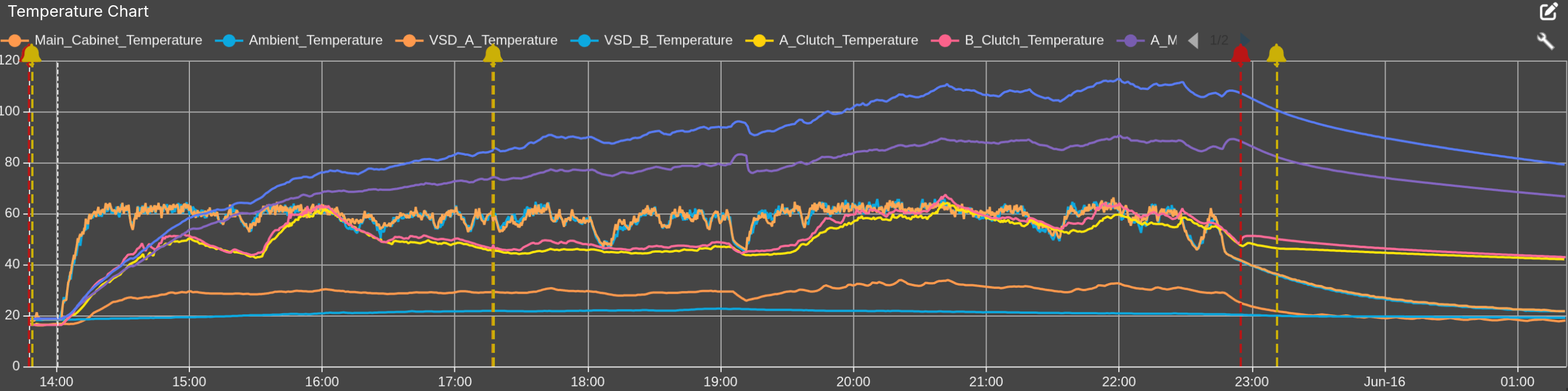
The Line Chart Widget is used to visualize historical and real-time machine data in a time-based graph. It enables users to compare one or multiple data sources, monitor trends, and analyze operational behavior over time.
The widget supports both regular data sources and Data Refinement Groups, allowing users to combine raw measurements with calculated or event-based indicators in a single visualization.
Regular data sources are visualized as continuous lines, making them suitable for trends and time-series measurements such as temperature, power consumption, or pressure.
Data Refinement Fields are visualized as mark lines, making them suitable for displaying thresholds, limits, events/alerts, or contextual indicators directly on the chart.
The Line Chart Widget includes extensive customization options, enabling users to configure appearance, calculations, time aggregation, axis behavior, data presentation, and much more.
Configuration Options
The Line Chart Widget contains several configuration options that control how data is retrieved, processed, and displayed.
Data sources
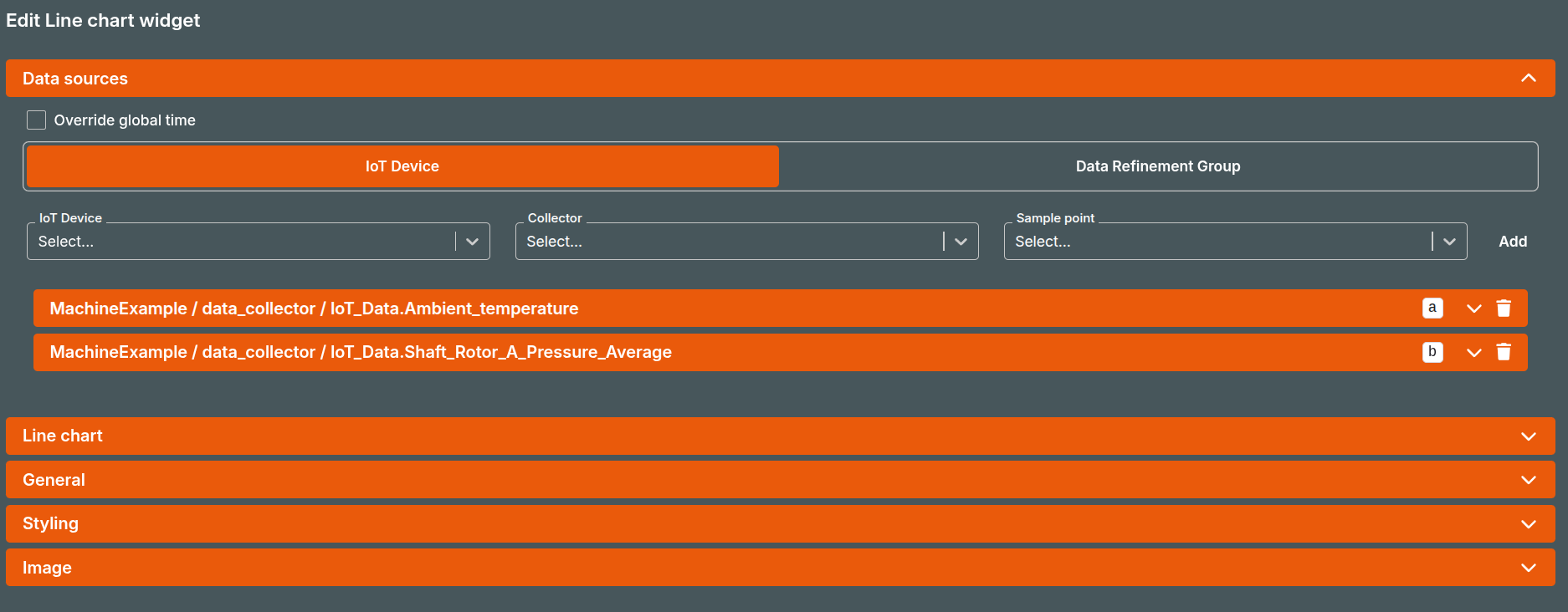
The Data sources tab is where you add the data that shall be visualized on the widget, whether it is regular data or Data Refinement Fields.
The Override global time checkbox allows the widget to be fixed at a specified time frame if the global time frame is using real time data.
IoT Device
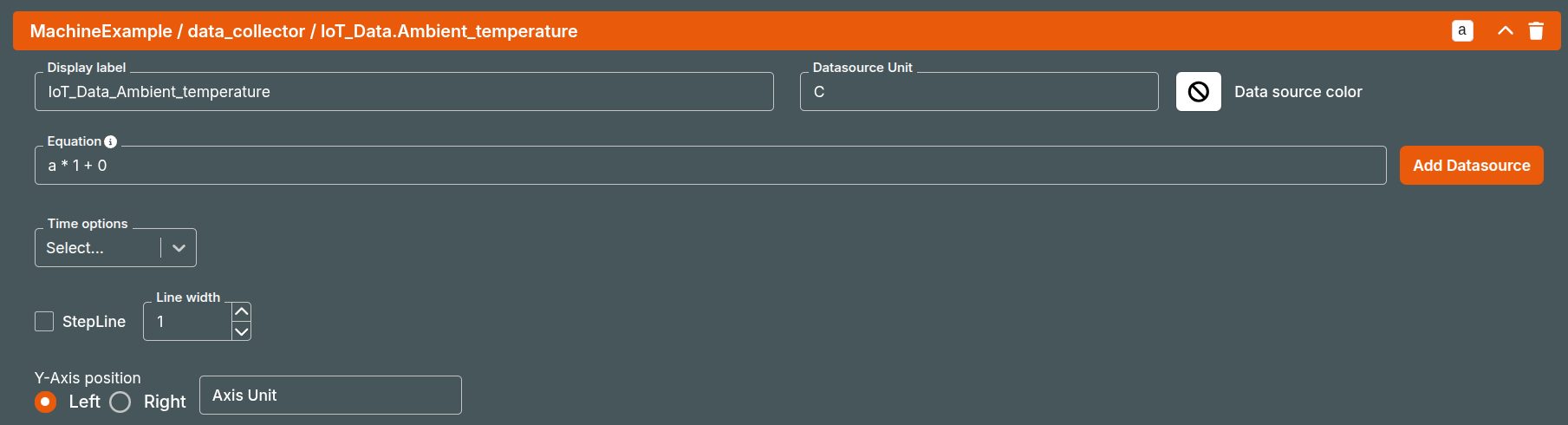
The IoT Device tab is where you add regular data sources, when a regular data source is added, it is possible to expand the data source for further configuration possbilitites:
Display label
Allows changing the visible name of the data source shown in the chart legend and tooltips. This can be useful when replacing technical signal names with more user-friendly labels.
Data source Unit
Add a unit to the tooltip value when hovering the line chart.
Line Color
Add specific color or opacity to the data source. No Color is that the system gives the data source a color.
Equation

The Equation field allows defining dynamic expressions using data sources and mathematical operations through mathjs. Each letter represents a data source: a = first data source b = second data source c = third data source
Note:
additional Data sources used in an equation must be added through the Add Data Source button within the Equation editor.
Time Option
The Time Options setting controls how historical data is aggregated and displayed.
Note:
Time Options are not supported in real-time mode.
Interval

Returns the minimum, maximum, or average value within a selected interval period.
This is useful for reducing noise and improving readability over large time ranges.
If Automatic Sub Interval is enabled, the system automatically selects an appropriate interval size based on the chosen time range.
Example: A 30-day range may automatically use hourly or daily intervals to improve performance and readability.
Difference

Returns the delta value between the selected intervals.
This option is particularly useful for counters, where the interest is the amount changed over time rather than the absolute value.
Step line
Displays the graph using step line rendering instead of a smooth continuous line.
Line width
Controls the thickness of the displayed line.
Y-Axis Configuration

Y-Axis postion: Allows selecting whether a data source should be placed on the left or right Y-axis.
This is useful when comparing data with significantly different scales.
Axis Unit: Defines the unit used for axis grouping. Multiple data sources using the same axis unit can share a common axis.
Data Refinement Group
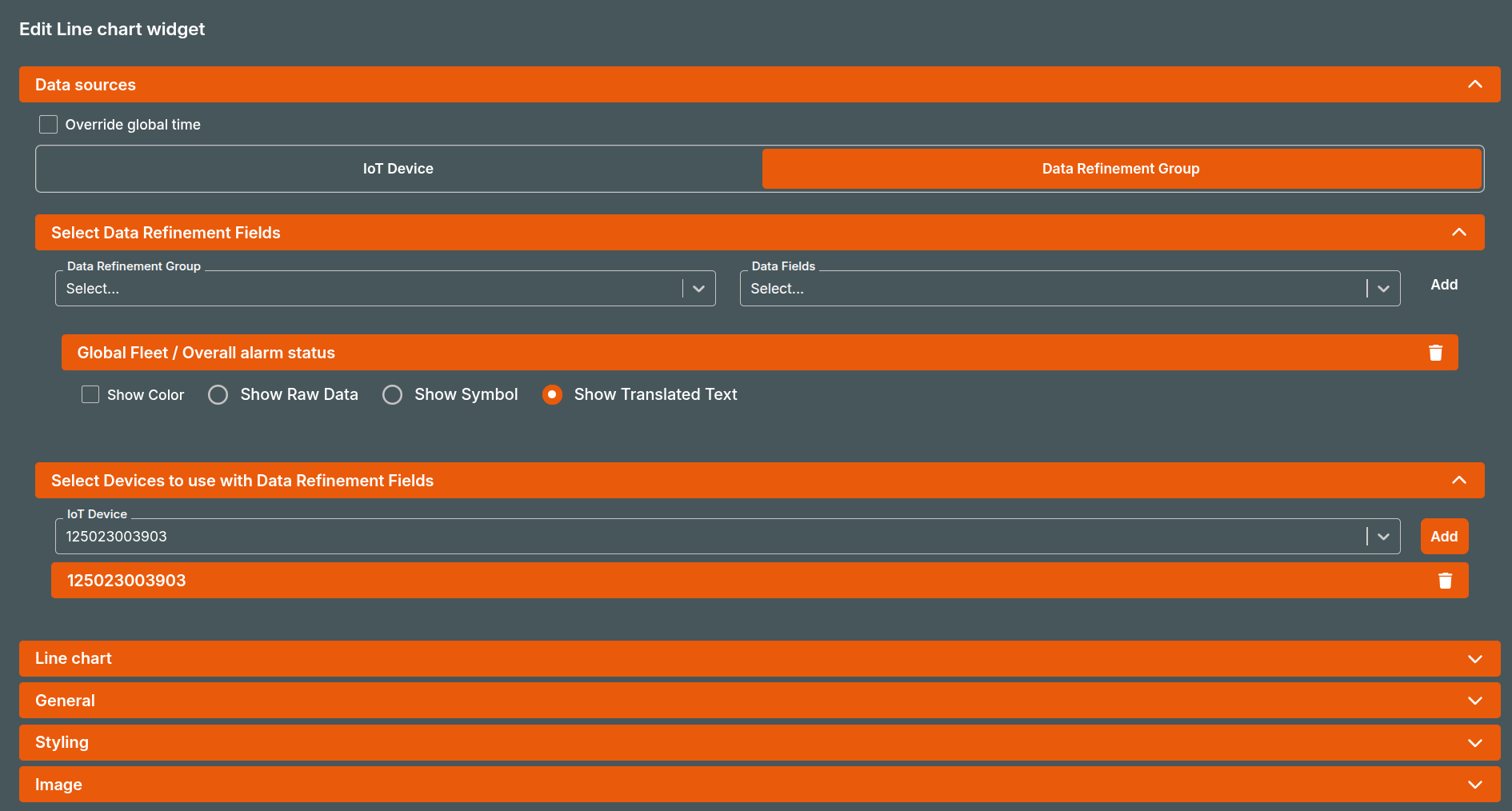
Adding Data Refinement Fields to a line chart will visualize mark lines when the specific translations becomes true. Once the Data Refinement Field is added, select which device the data shall be pulled from.
Note:
Data Refinement Fields still function with Fleet Management, as long as the device has the specfied group attached.
Once added the line chart will input mark lines when the translation changes:
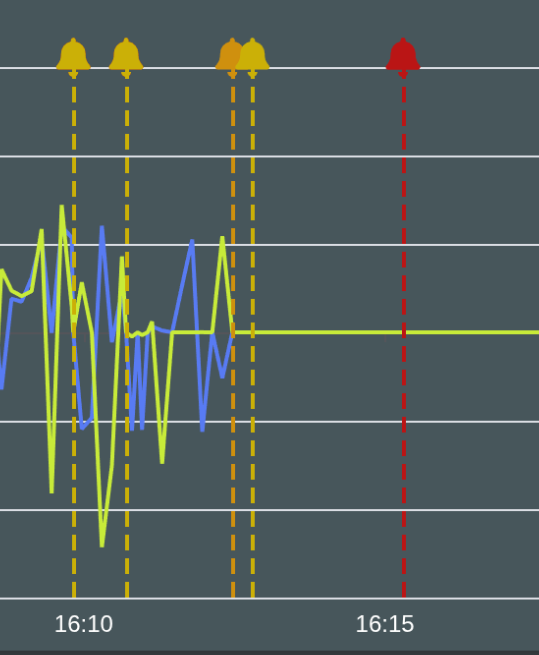
Line chart

Currently are there two options within the Line Chart options:
- Synchronize tooltip: When enabled, tooltips are synchronized across all Line Chart Widgets on the dashboard that also have this option enabled. Hovering over a data point in one chart will automatically display the corresponding tooltip and timestamp in the other synchronized charts.
- Show full time period: When enabled, the chart always displays the entire selected time range, even if no data is available for portions of the period.