Working with DCC Reports
Last edited: August 10th 2026
DCC Reports can be used to generate CSV reports or Dashboard-based reports for selected machine data.
Reports can be generated manually, on a schedule, or automatically when a configured machine value changes. This makes reports useful for production documentation, batch reports, CIP reports, service reports, audit documentation, and periodic operational reporting.
Creating a report
To create a report:
- Open the Reports menu.
- Right-click the company where the report should be created.
- Select Create report.
- Enter a report name.
DCC will then open the report setup wizard.
Report setup wizard
The report setup wizard guides you through the report configuration step by step.
The available steps depend on the selected report type and trigger mode.
Typical steps are:
-
General
Select the report type. -
CSV or Dashboard
Configure the report output. -
Trigger
Define how the report should be generated. -
Schedule or Conditions
Configure scheduled generation or value-based trigger conditions. -
Sample points
Select the CSV data sources. This step is only shown for CSV reports.
Step 1: Select report type
In the General step, select the report type.
Available report types are:
- CSV
- Dashboard
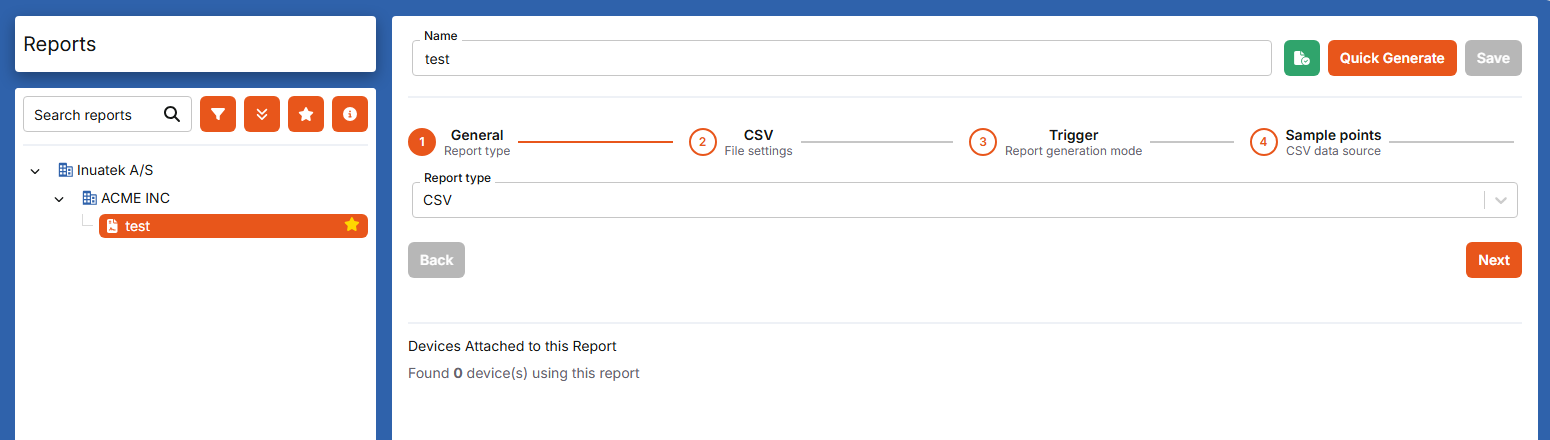
A CSV report generates a data file containing selected sample points for the selected report period.
A Dashboard report sends a link to a DCC dashboard for the selected report period.
Step 2A: Configure CSV settings
If the report type is CSV, the next step is used to configure the CSV file format.
You can configure options such as:
- Whether to exclude the header row.
- Whether to split the report into single files.
- Combined file name.
- CSV delimiter.
- Decimal separator.
- Whether to attach the CSV file directly instead of sending a download link.
The selected CSV settings are used whenever the report is generated.
Step 2B: Select Dashboard
If the report type is Dashboard, the next step is used to select the dashboard that should be linked to in the report email.
The dashboard will show data for the report time range.
The dashboard is live, which means users can interact with the dashboard and zoom in on widgets. However, users cannot zoom outside the time window defined by the report.
Step 3: Select trigger mode
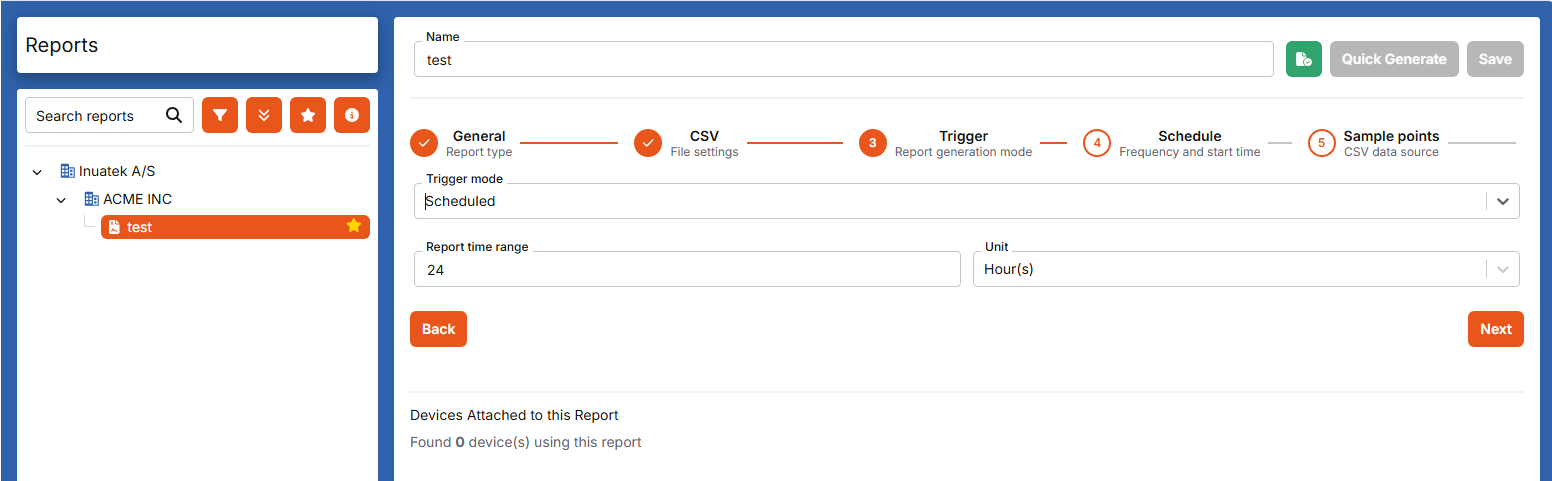
In the Trigger step, select how the report should be generated.
Available trigger modes are:
- None
- Scheduled
- Value-based trigger
None
Select None if the report should only be generated manually.
This is useful when the report is prepared as a reusable template, but should not run automatically.
Scheduled
Select Scheduled if the report should be generated automatically at fixed intervals.
When using scheduled reports, define the report time range, for example the previous 24 hours.
The next step lets you configure the schedule frequency and start time.
Value-based trigger
Select Value-based trigger if the report should be generated automatically when a selected value changes.
This is useful for batch reports, cycle reports, CIP reports, machine-state reports, or other reports where the relevant period ends when a machine value changes.
Step 4A: Configure schedule
If the trigger mode is Scheduled, configure when the report should be generated.
You must define:
- How often the report should be generated.
- The time unit, for example hours or days.
- The start time.
Example:
- Every:
24 - Unit:
Hour(s) - Starting at:
2026-08-10 15:31
This configuration generates the report every 24 hours, starting from the configured start time.
Step 4B: Configure value-based conditions
If the trigger mode is Value-based trigger, configure the condition that should generate the report and the time range that should be included.
A value-based trigger generates a report when a selected sample point changes according to the configured condition.
This can be used when a report should be generated at the end of a batch, production cycle, cleaning process, machine state, or similar event.
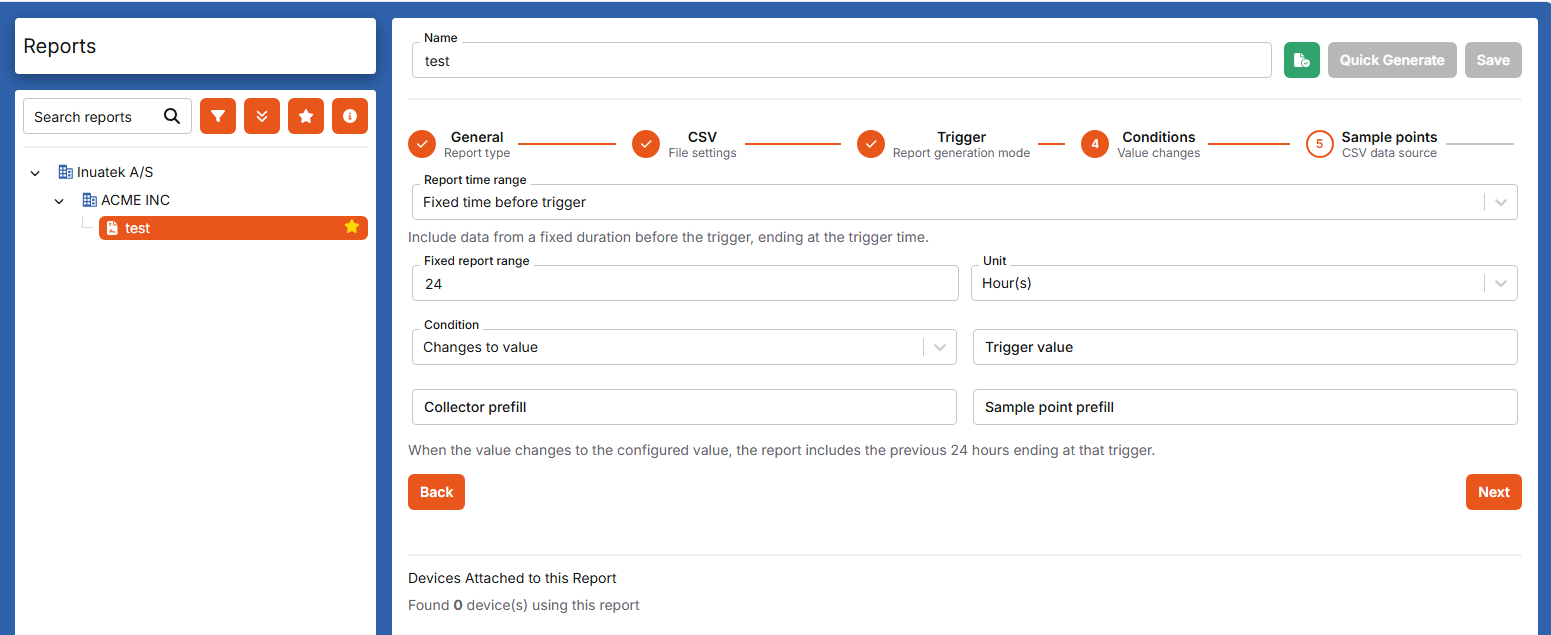
Report time range
When using a value-based trigger, choose how DCC should determine the period included in the report.
Fixed time before trigger
Use Fixed time before trigger when the report should include a fixed period before the trigger.
Example:
- Trigger occurs at 14:00.
- Fixed report range is 24 hours.
- The report includes data from 14:00 the previous day until 14:00.
This is useful when the process duration is known, or when the report should always include the same time span before the trigger.
Condition period before trigger
Use Condition period before trigger when the report should include the latest continuous period where the value before the trigger remained unchanged.
DCC searches backwards from the trigger time until it finds a different value.
Example 1:
- Machine state changes from
4to0. - The report covers the period where the machine state was
4.
Example 2:
- Batch ID changes from
BtoC. - The report covers the period where the Batch ID was
B.
Example 3:
- Batch number changes from
123to0. - The report covers the period where the Batch number was
123.
This is useful when the value itself identifies the batch, cycle, machine state, or process that has just ended.
When using Condition period before trigger, the report covers the value immediately before the trigger.
This means that if the value changes from B to C, the report covers B. If the value changes from 4 to 0, the report covers 4. If the value changes from 123 to 0, the report covers 123.
The value after the trigger marks the beginning of the next period, not the period being reported.
Trigger condition
When using a value-based trigger, select the condition that should generate the report.
Changes value to
Use Changes value to when the report should be generated when the selected value changes to a specific value.
Examples:
0→1- Any value →
4 - Batch number →
0
This can be used when a specific value indicates that a process has ended.
Example:
A batch number is set when the batch starts and written back to 0 when the batch ends. Configure the trigger as Changes value to 0 and use Condition period before trigger. The report will cover the period where the previous batch number was active.
Changes value from
Use Changes value from when the report should be generated when the selected value leaves a specific value.
Examples:
1→04→04→ any other value
This is useful when a specific machine state means that a process is active.
Example:
If machine state 4 means “Cleaning in progress”, configure the trigger as Changes value from 4 and use Condition period before trigger. The report will cover the period where the value was 4.
Changes value
Use Changes value when any value change should generate the report.
This is typically used for Batch ID, Job ID, Recipe ID, or similar values.
Example:
If the Batch ID changes from B to C, DCC generates a report for Batch B.
For Changes value to and Changes value from, the configured trigger value must be numeric.
Text values such as Batch IDs are supported when using Changes value, where any change in the value triggers the report.
Configuring the trigger prefill
For value-based reports, configure the collector and sample point prefill that should be used to find the trigger sample point on each device.
You can define:
- Collector prefill
- Sample point prefill
These fields work similarly to Data Refinement prefill.
The selected device is only used as a template while configuring the report. The device selection itself is not saved as the fixed trigger source.
When the report is applied to a device through the Configuration Schema, DCC looks for matching collector and sample point names on that device.
Example:
The report is configured using the device Germany as template.
The trigger sample point is:
- Collector:
SimulatedFactory - Sample point:
BatchID
If the report is later applied to a device called France, DCC will look for:
SimulatedFactory / BatchID
on the France device.
If the collector or sample point does not exist on the applied device, the trigger sample point cannot be matched for that device. The mapping must then be selected manually on the device, or the report will not be triggered for that device.
Step 5: Select CSV sample points
For CSV reports, the final step is used to select the sample points to include in the report.
This step is only shown for CSV reports. Dashboard reports use the sample points and widgets already configured on the selected dashboard.
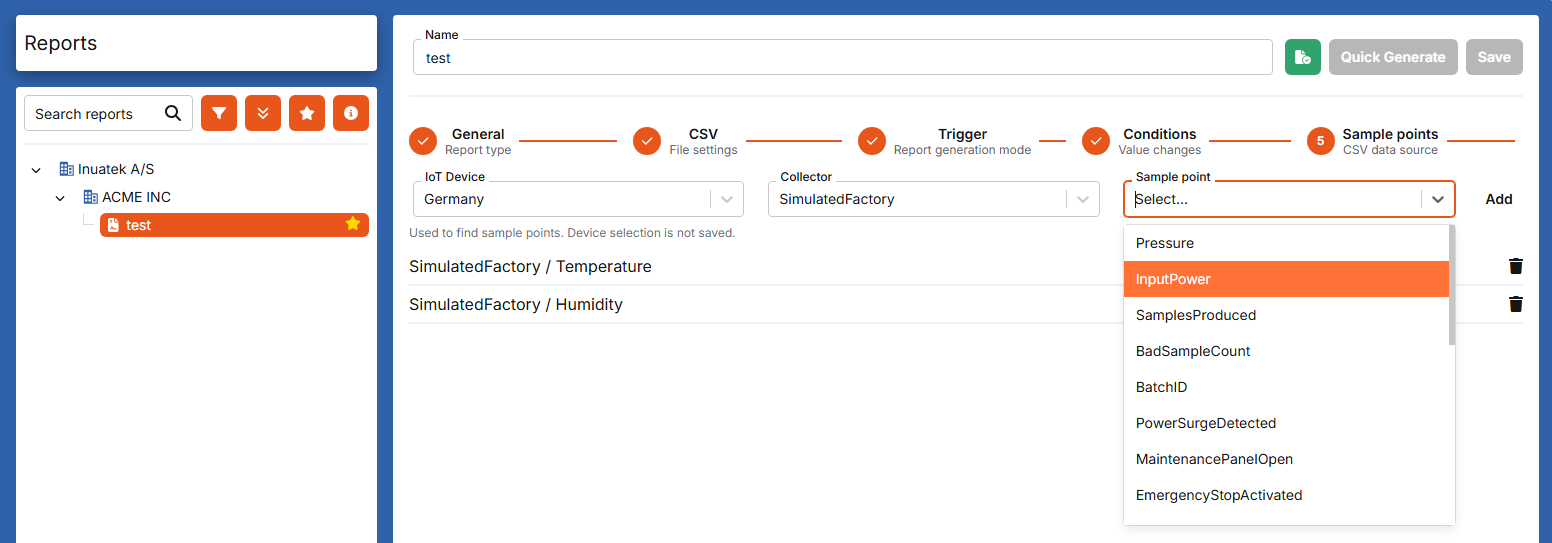
As with the trigger sample point, the selected device is only used as a template.
When the report is applied to a device through the Configuration Schema, DCC looks for sample points with matching collector and sample point names on that device.
Example:
The report is configured using the device Germany, and the following sample points are selected:
SimulatedFactory / TemperatureSimulatedFactory / Humidity
If the report is applied to a device called France, DCC will include these sample points from France if matching collector and sample point names exist.
If France does not have SimulatedFactory / Temperature, that sample point is omitted from the report.
Adding a report to a device
A report definition is not tied to one specific device. To use a report for a device, add the report to the device through the Configuration Schema.
To add a report to a device:
- Go to IoT Administration.
- Select the relevant device.
- Open the Configuration Schema tab.
- Select the Add button.
- Select Add Report.
- Select the report to add to the device.
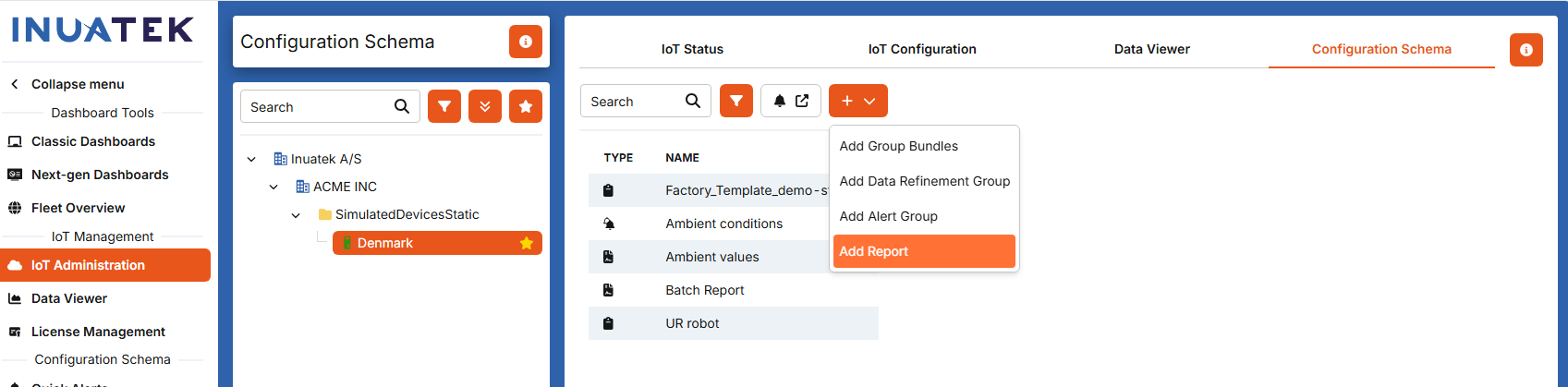
After the report has been added, you can configure how the report should behave for that specific device.
Adding report recipients
When a report is added to a device, you can define who should receive the report.
You can add:
- One or more email addresses.
- Alert Recipient Groups.
Multiple email addresses can be separated by semicolon (;).
Alert Recipient Groups reuse existing recipient groups. This makes it possible to send the report to the same users or service teams that are already configured as recipients elsewhere in DCC.
This section only explains how to select recipients for a report. The full recipient group concept is also used by alerts and is managed separately.
Disabling a report for a device
A report can be disabled for a specific device by selecting Disable this Report for this Device.
When disabled for a device:
- Scheduled generation is stopped for that device.
- Value-based trigger generation is stopped for that device.
- The report can still be generated manually.
This is useful when the same report should be available on several devices, but should only run automatically on selected devices.
Mapping value-based trigger conditions
If the report uses a value-based trigger, the trigger condition must be mapped to a collector and sample point on the device.
If the collector and sample point prefill from the report definition matches the device exactly, DCC will prefill the mapping automatically.
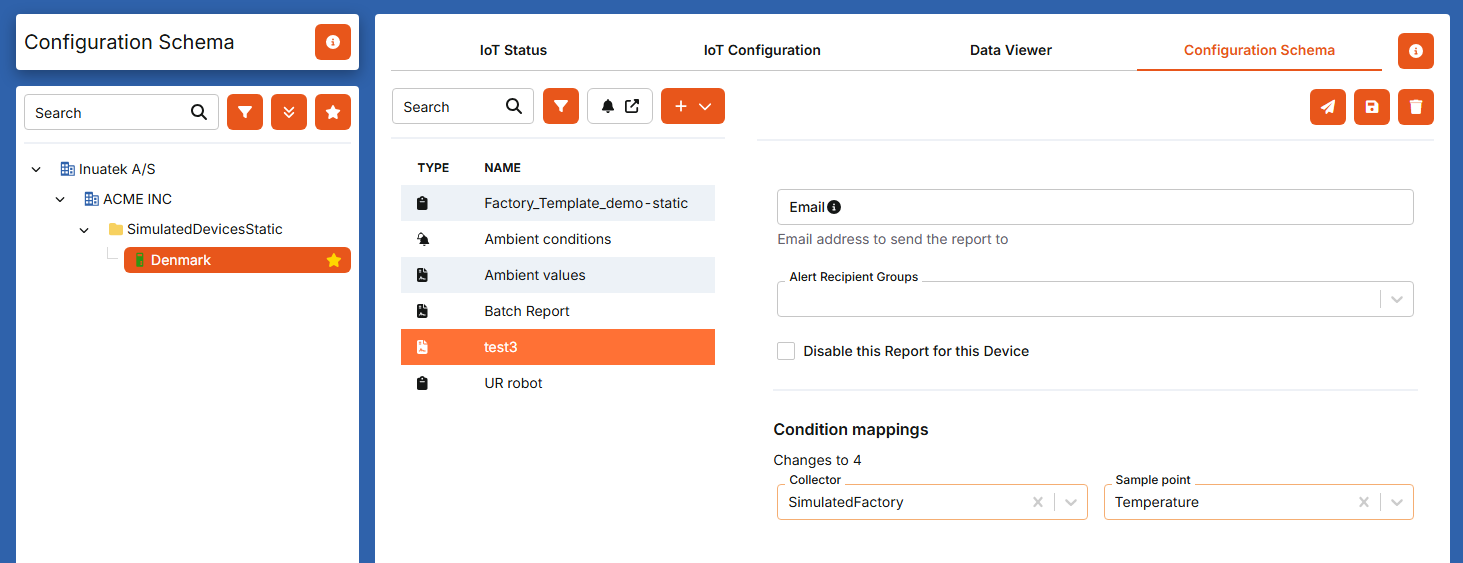
If the prefill is not configured, or if the collector or sample point name does not match the device, you must select the collector and sample point manually.
The mapping defines which sample point on this specific device is used to evaluate the trigger condition.
Example:
The report condition is Changes to 4.
For the device, the condition is mapped to:
- Collector:
SimulatedFactory - Sample point:
Temperature
DCC will then generate the report when that sample point changes to 4, using the time range configuration from the report definition.
Quick Generate report
A report can be generated manually by selecting Quick Generate.
Quick Generate prompts for:
- Time range
- Device
- Email recipient
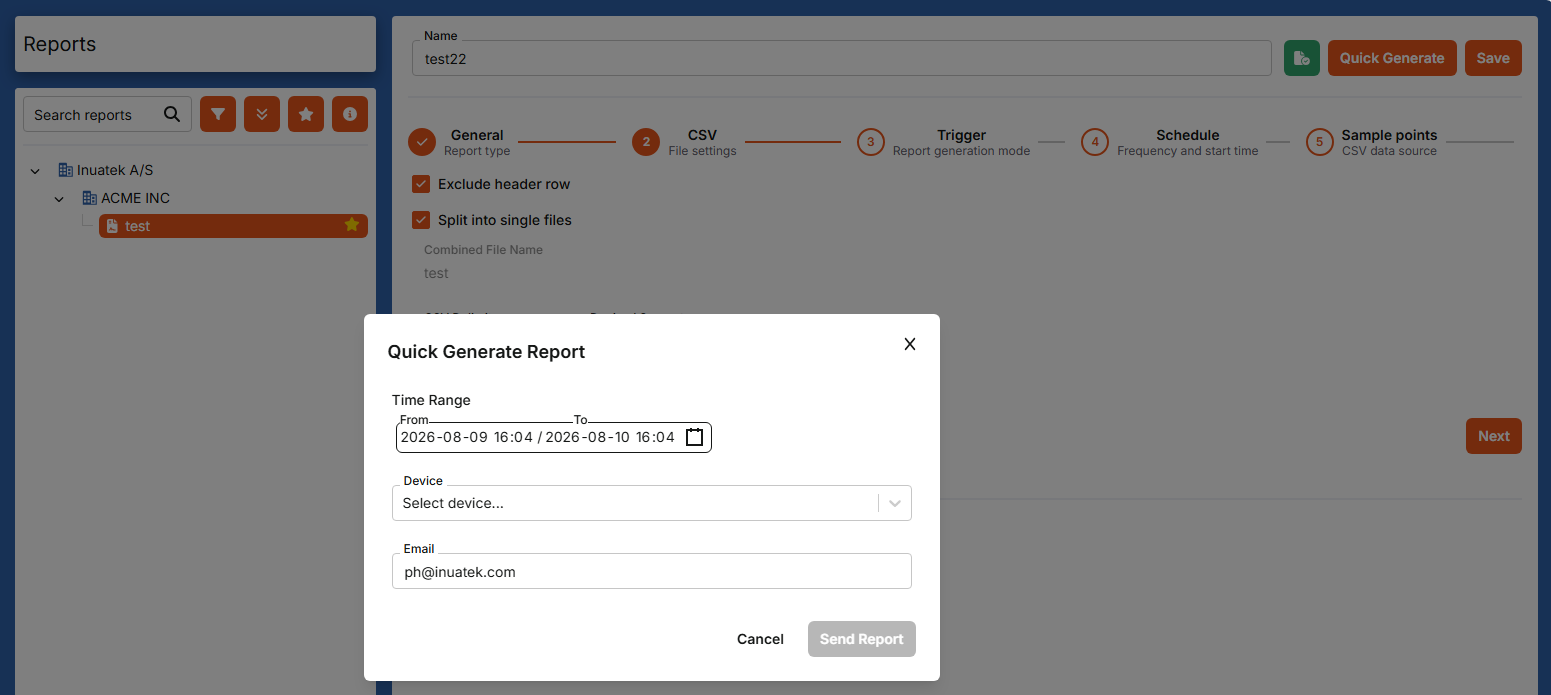
Quick Generate can be used even if the report is normally scheduled or value-triggered.
Quick Generate is also available from the Configuration Schema when the report has been added to a device.
This is useful for testing the report configuration or generating an ad-hoc report for a specific period.
Enabling and disabling reports
A report can be disabled using the enable/disable icon at the top of the report configuration.
When disabled:
- Scheduled generation is stopped.
- Value-based trigger generation is stopped.
- The report can still be generated manually using Quick Generate.
The icon changes from green to red when the report is disabled.
Reports can also be disabled per device when they are applied through a Configuration Schema. This means the same report can be attached to multiple devices, while automatic generation can be disabled for selected devices.
Examples
Batch report based on Batch ID
Use this when a Batch ID changes at the end of each batch.
Configuration:
- Report type: CSV or Dashboard
- Trigger mode: Value-based trigger
- Report time range: Condition period before trigger
- Condition: Changes value
- Trigger sample point:
BatchID
Example:
- Batch ID changes from
BtoC. - DCC generates a report for the period where Batch ID was
B.
Batch report where batch number returns to 0
Use this when the batch number is set during the batch and reset to 0 when the batch ends.
Configuration:
- Report type: CSV or Dashboard
- Trigger mode: Value-based trigger
- Report time range: Condition period before trigger
- Condition: Changes value to
- Trigger value:
0 - Trigger sample point:
BatchNumber
Example:
- Batch number changes from
123to0. - DCC generates a report for the period where Batch number was
123.
This can be used for processes such as CIP, where the report should document the period where a batch number, cleaning number, or process number was active.
CIP report based on cleaning state
Use this when a specific machine state represents a cleaning process.
Configuration:
- Report type: CSV or Dashboard
- Trigger mode: Value-based trigger
- Report time range: Condition period before trigger
- Condition: Changes value from
- Trigger value: cleaning state, for example
4 - Trigger sample point:
MachineState
Example:
- Machine state changes from
4to0. - DCC generates a report for the period where machine state was
4.
Daily CSV report
Use this when a report should be generated every day.
Configuration:
- Report type: CSV
- Trigger mode: Scheduled
- Report time range:
24 hours - Schedule: every 24 hours
- Sample points: selected CSV data sources
Manual dashboard report
Use this when a report should only be generated manually.
Configuration:
- Report type: Dashboard
- Trigger mode: None
- Dashboard: selected dashboard
- Use Quick Generate when the report should be sent.
Recommended signals for value-based reports
The value-based trigger is intended for values that clearly indicate the end of a period.
For batch reports, the best signal is usually a:
- Batch ID
- Batch number
- Cycle complete flag
- Machine state
- Process state
For reports based on Condition period before trigger, the value should remain stable during the period being reported. For example, the Batch ID should remain the same during the batch, or the machine state should remain the same during the process.
If the value changes several times during the same physical process, DCC will treat each continuous value period as a separate report period.
Troubleshooting
The report does not include an expected sample point
Check that the device where the report is applied contains a collector and sample point with the same names as the prefill values configured in the report.
If the matching collector or sample point does not exist on the device, the sample point is omitted from the report.
The report is not generated automatically
Check that:
- The report is enabled.
- The report is enabled for the relevant device under the Configuration Schema.
- The report is attached to the relevant device.
- The trigger sample point can be matched on the device.
- The selected trigger condition actually occurs in the data.
The report period is shorter than expected
When using Condition period before trigger, DCC searches backwards only while the previous value remains unchanged.
If the value changed during the physical process, the report period will start at the latest change of that value.
For longer processes where the value may change during the process, consider using Fixed time before trigger instead.