Customer Creation and License Handling for DCC Distributors
Applicable to DCC version 6.0
About
This document describes:
- How to create a new Customer in DCC
- Information on Trial licenses
- The workflow for creating licenses, handling POs, and invoicing
- How to replace or upgrade licenses
Prerequisites
- You are a designated distributor of Inuatek DCC. “You/your” in the following refers to you as Distributor.
- You must have an Administrator account for your distributor company’s root domain. If someone else in your company has such an account, please reach out to them to create an account with the same privileges.
1. Creating a Customer
When logged in with your Administrator account in your Distributor company, navigate to IoT Administration, right-click the Company icon (e.g. ACME Distro), select Create Company, and fill in the customer details.
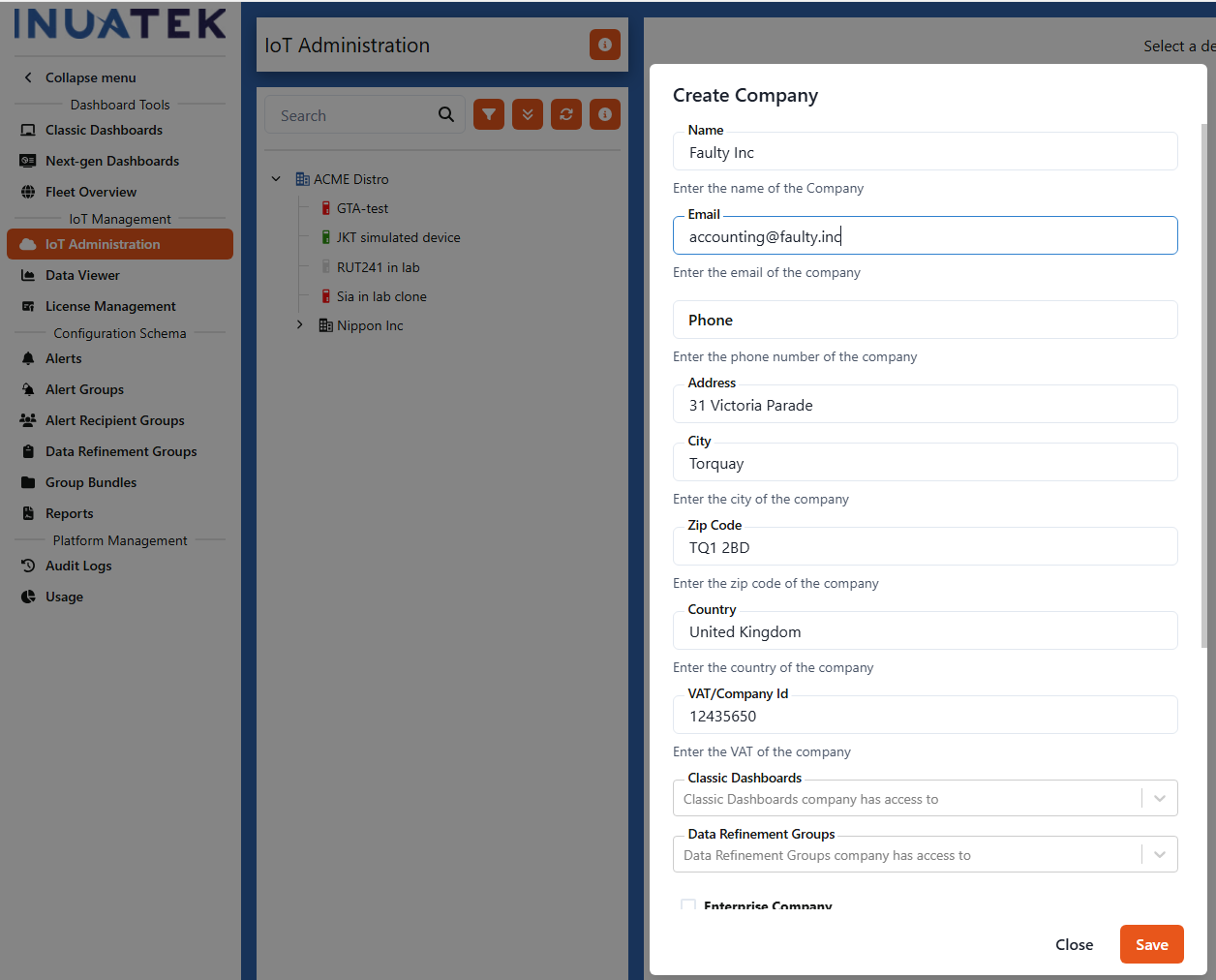
Notes about the above:
- The Email entered will receive the monthly consumption reports. This may be the customer’s logistics department or whoever is responsible for validating invoices.
- Be precise with the address, as it is used for auto-positioning devices on fleet maps. Customers can always adjust positions manually, and GPS data from devices takes precedence.
- The VAT number is for your use only. Inuatek does not require the customer’s VAT number, as invoicing is directly between Inuatek and the Distributor.
- You can disregard the remaining fields for now.
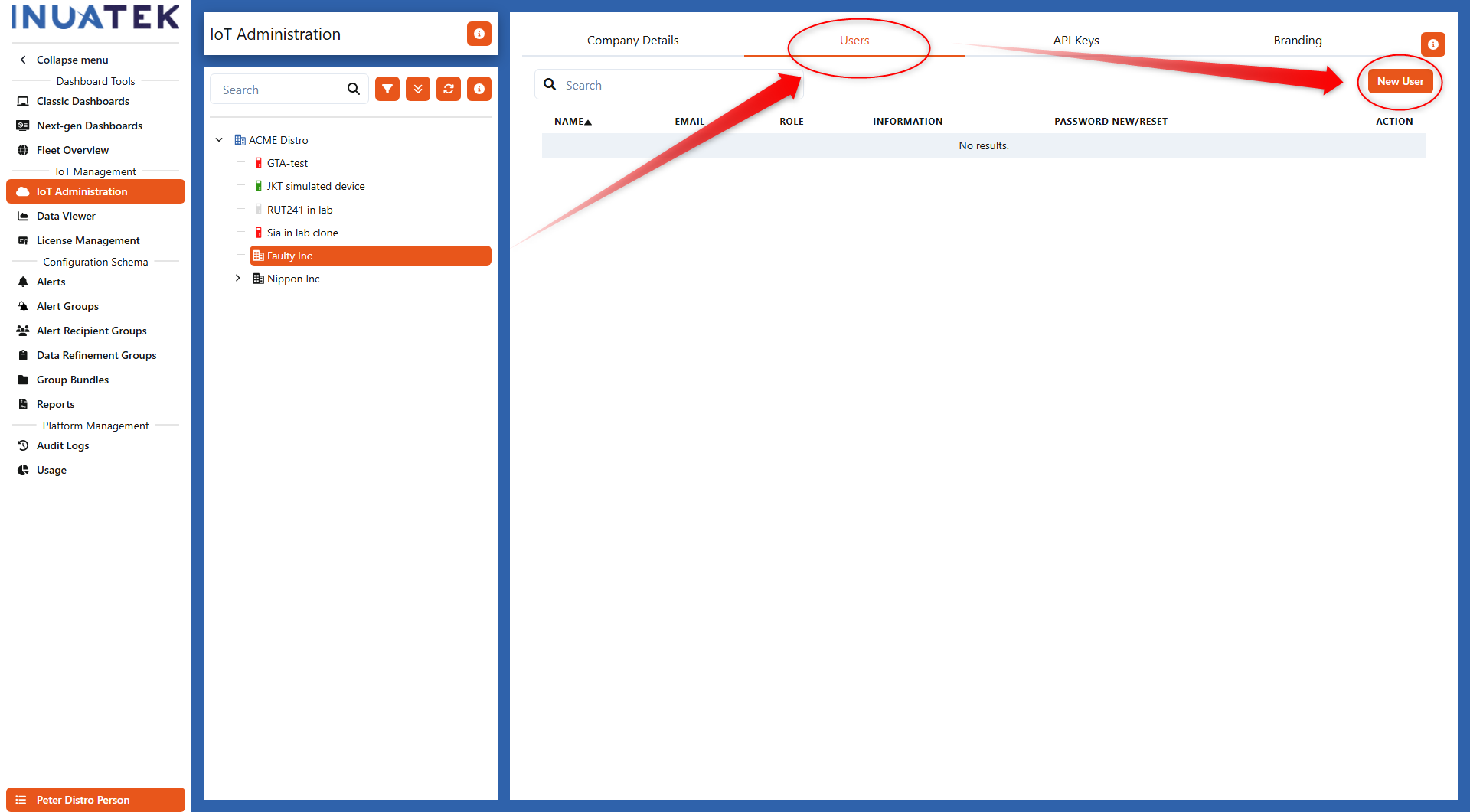
Next, highlight the new company, go to Users, and select New User.
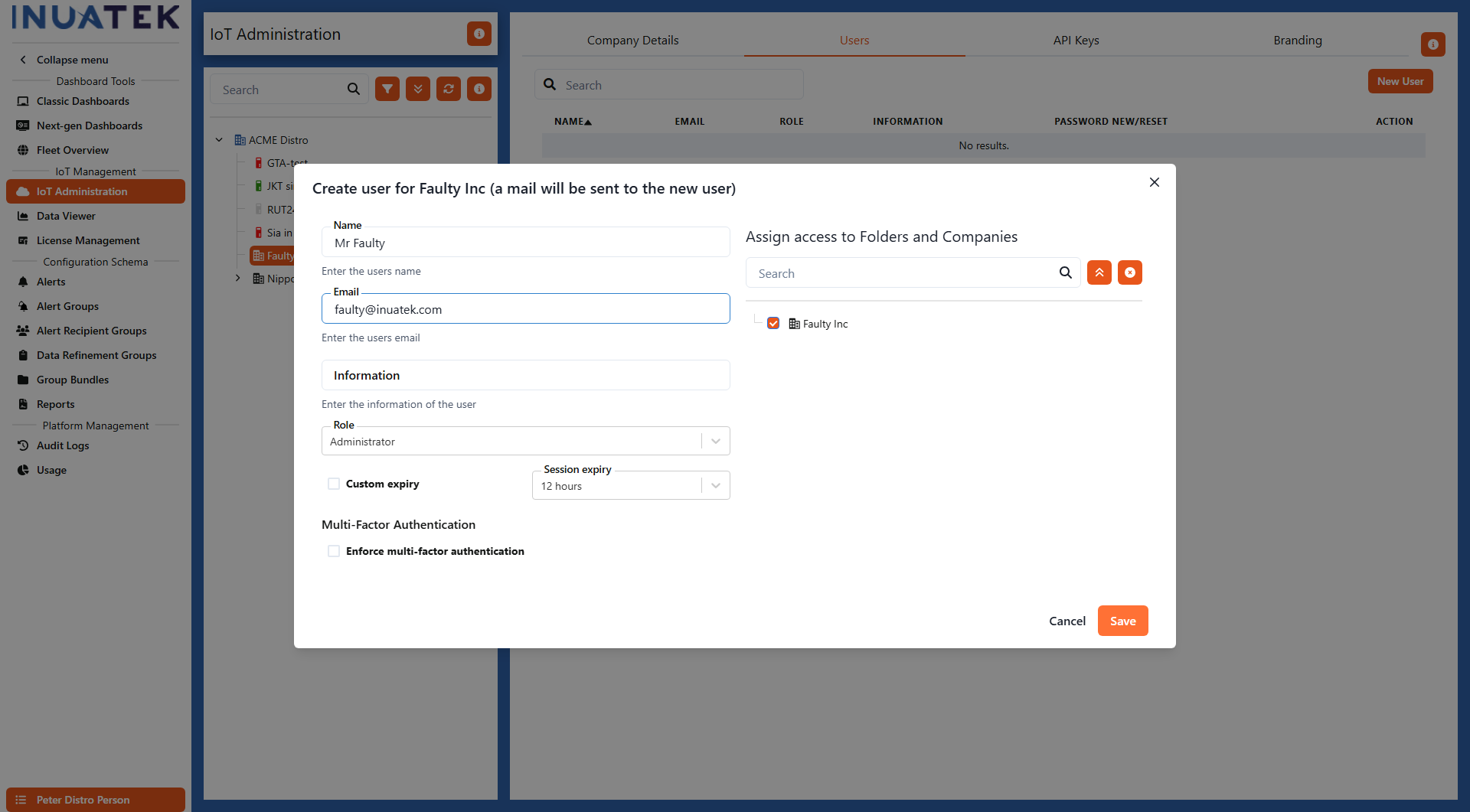
Fill in the details of the person at the customer company who should have the role of Administrator in DCC. When you click Save, an invitation email will be sent to this person with a link to the platform. They will be prompted to set a password and accept the terms (terms are also available here: Terms | Inuatek).
2. Trial Licenses
When creating a new Company, one Trial license is automatically created. You can view this under License Management in the left menu:
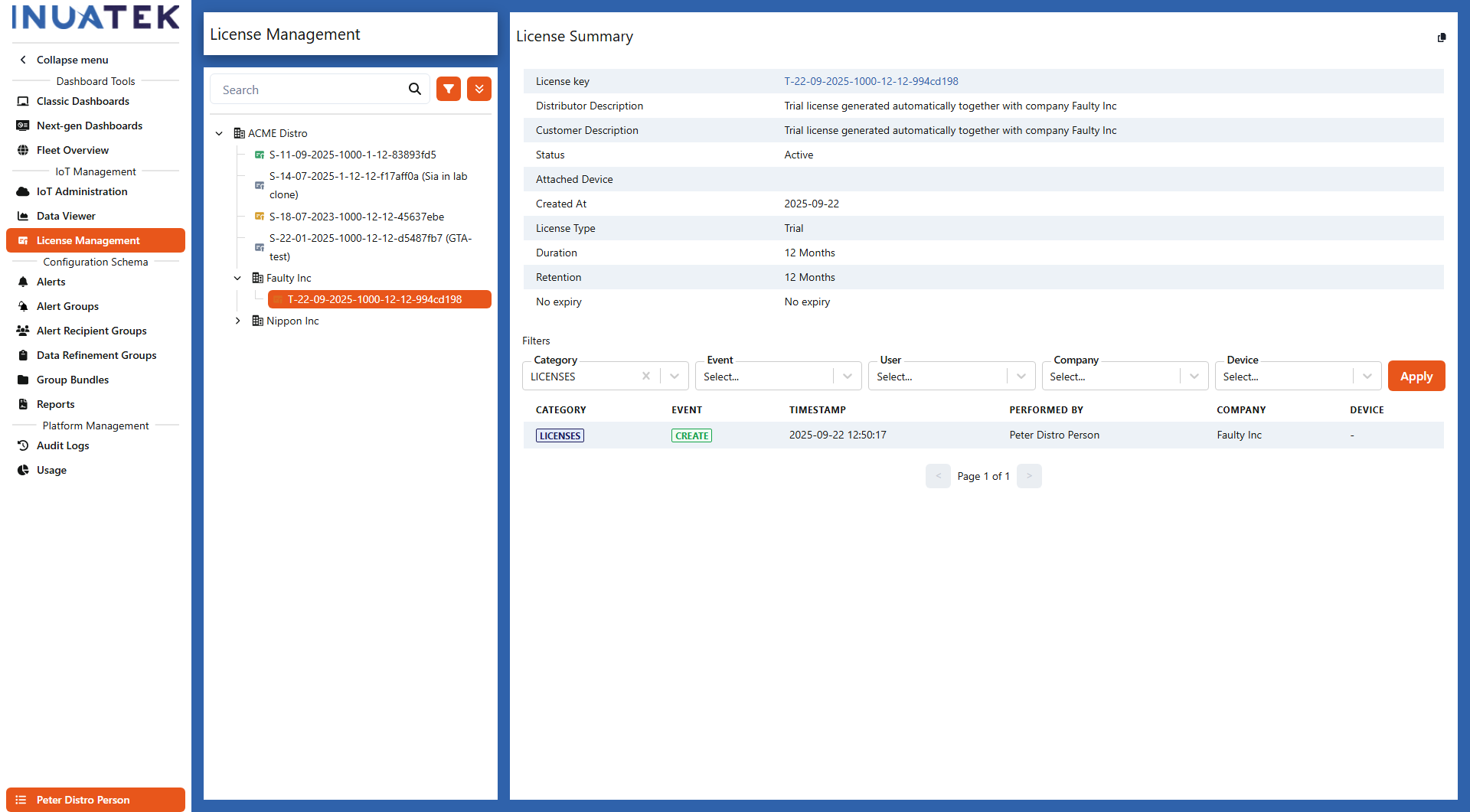
This allows the customer to create their first device in DCC and activate data for it by attaching the Trial license. They do that by clicking the 3 dots at the License Status for the device.
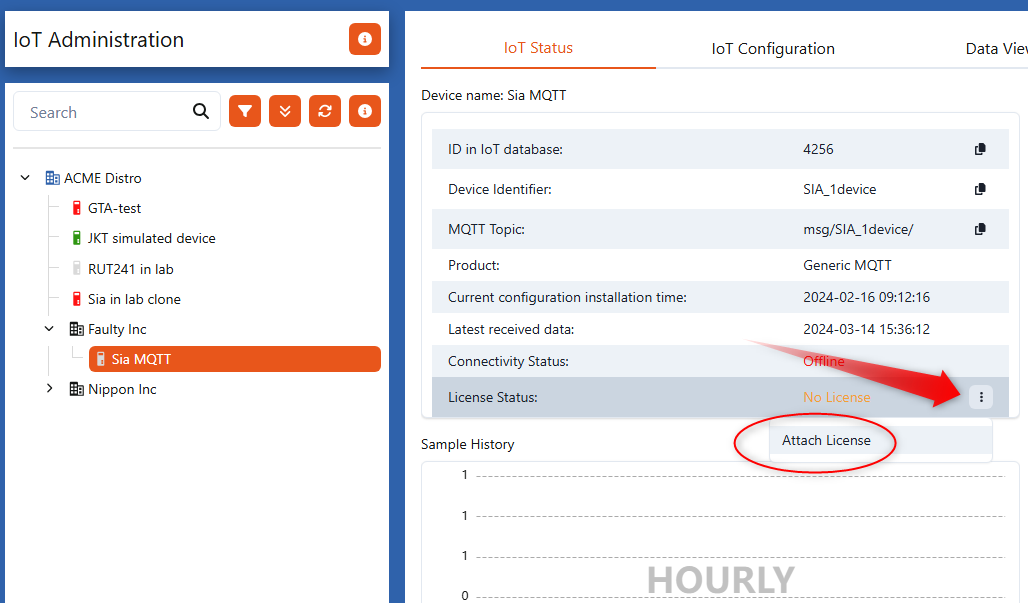
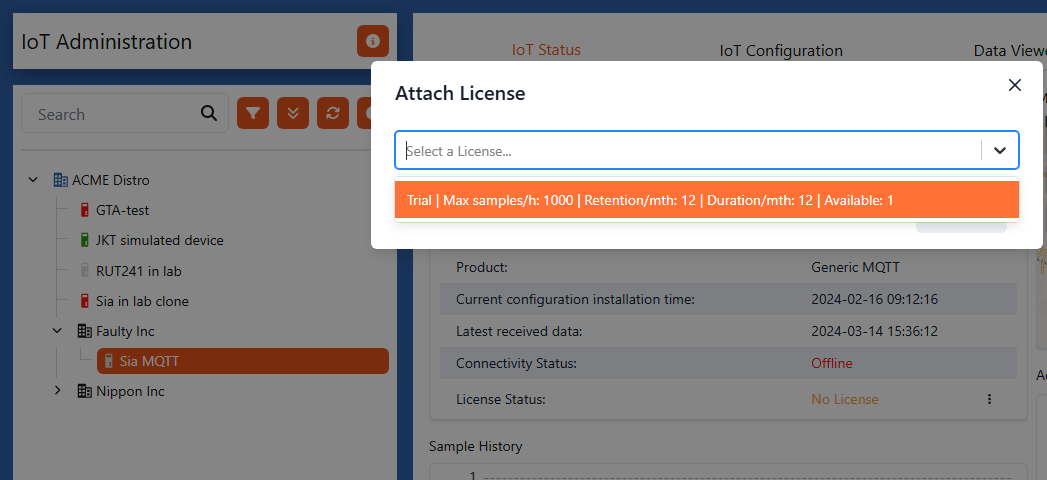
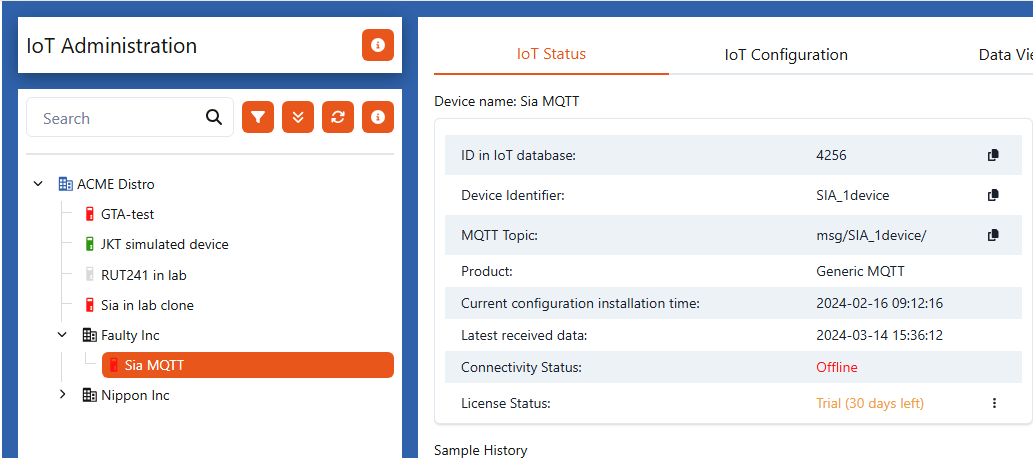
The license immediately activates the device (whether it is online or offline) and starts the 30-day trial counter. After 30 days from first attachment, the license will expire and cannot be re-activated.
Hints:
- You can create additional Trial licenses for the customer if needed, following the same procedure as for creating a billable license.
- The same device can have its trial extended by applying another Trial license.
- A Trial license can be moved to another device within the 30-day period.
3. Billable Licenses
3.1. Process for Billable Licenses
The process for a billable license is typically as follows:
- The Customer orders a license from you by issuing a PO according to the price list you provided.
- You create the license in DCC (see below).
- Note: The license duration starts on the first day of the month following creation. Even if the process takes a few days, the customer effectively gains a few extra days.
- You inform the Customer about the availability of the license in their DCC company account.
- You invoice the Customer.
- You issue a PO to Inuatek for the license(s), referencing either the customer’s Company name or the License Serial number. If you entered the PO in the Distributor Description field (see below), that will be sufficient.
- Note: You may accumulate licenses during the month and send a collective PO for all generated licenses across multiple customers, as long as each license lists the correct customer.
- Inuatek invoices you.
3.2. Creating a Billable License
In DCC, go to License Management, right-click the Company, and select Create License.
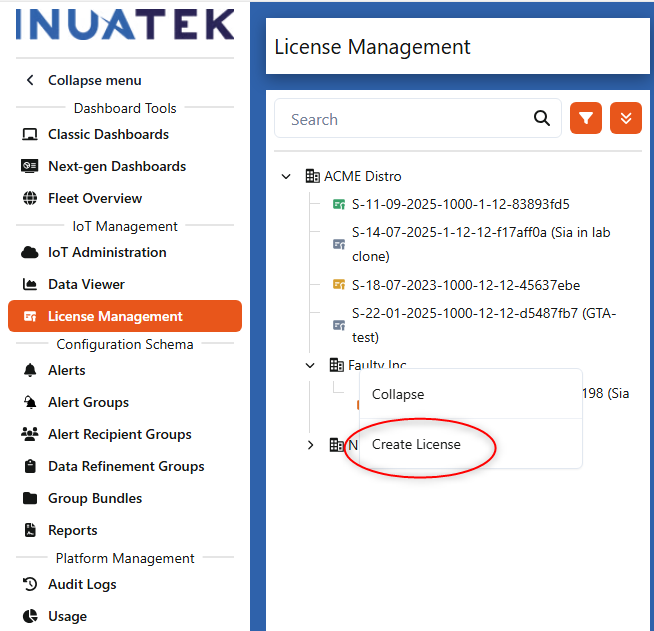
You will then see several parameters to configure:
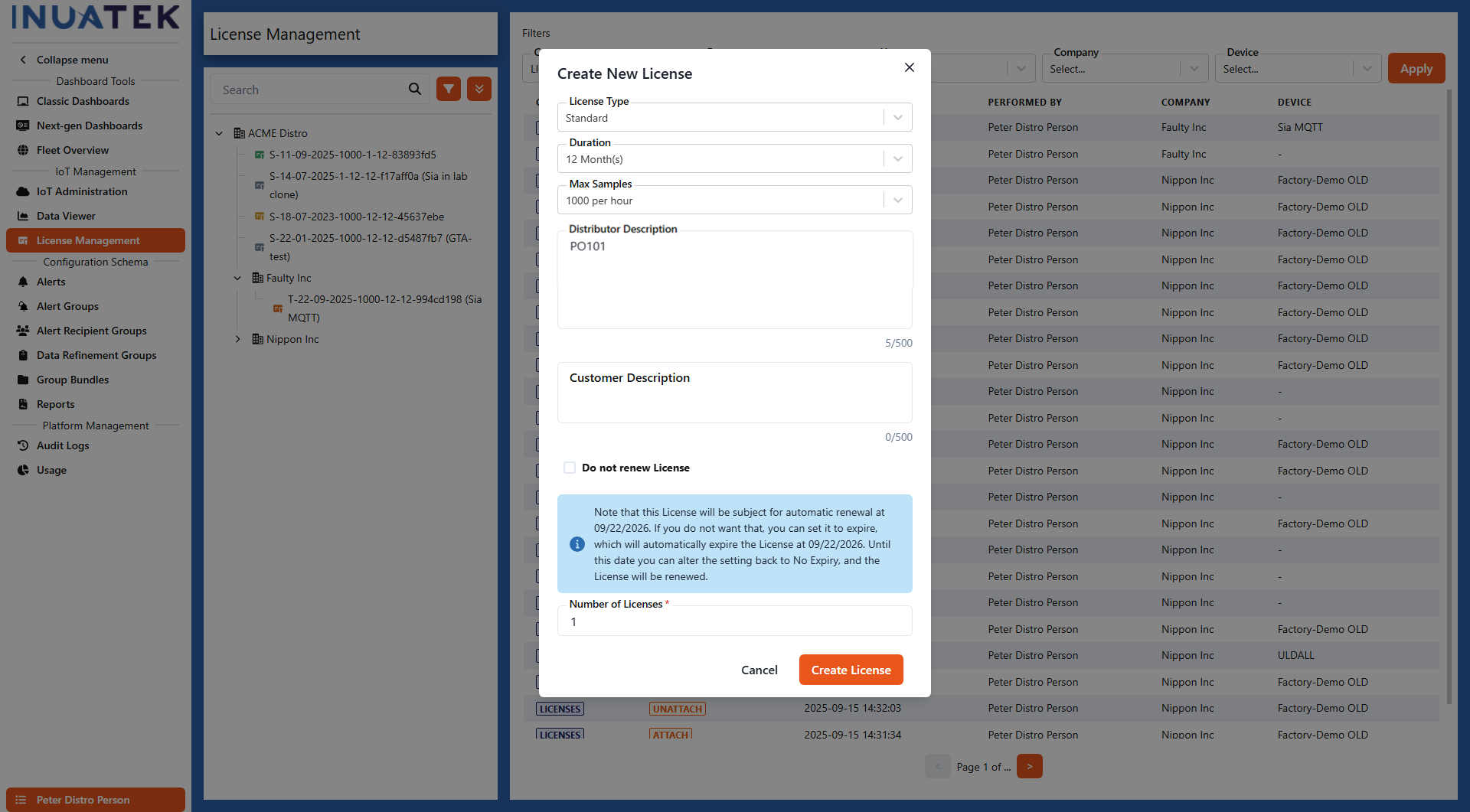
License Type: Choose Standard for paid licenses, or Trial to create an additional Trial license. The following assumes Standard.
Duration: Defines how long the license is prepaid. The default is 12 months. Shorter durations (e.g. 1 month) can be enabled upon request for your distributor account.
Max Samples: The maximum number of samples per hour.
- The usage is calculated over 24 hours. For example, if a machine runs 8 hours per day, it could collect up to 3000 samples per hour while remaining within a 24,000 per day limit.
- Use the Trial period to estimate actual consumption. Under IoT Administration, customers can see hourly consumption for the last 24 hours and last 7 days.
- Note: DCC does not delete or throttle data if the limit is exceeded. Instead, both you and the customer are notified in monthly reports, and you should discuss an upgrade if needed.
Distributor Description: Recommended for entering your PO to Inuatek, making it easy to associate the license with a PO. This field is visible only to you and Inuatek. You can edit it after license creation.
Customer Description: Can be used to enter the customer’s PO or other relevant info. This field can also be edited by the customer.
Do Not Renew License:
- By default, licenses are set to No-Expiry and automatically renew after their duration ends.
- Customers or distributors can change this setting before expiry. If set to Expire, the license automatically ends at the duration end, and the device stops sending data.
- Expired licenses cannot be reactivated.
Number of Licenses: Create multiple identical licenses in bulk, including description fields. Useful for generating several licenses for the same customer/PO.
Hint: You can delete a license if the wrong parameters were selected. You can also drag a license to another Company in License Management if it was created under the wrong Company.
4. License Replacement
By design, you cannot change the License Type, Duration, Max Samples, or Retention after creation. If a customer requires different values, they must purchase a new license. The old license can still be used by another of the customer’s devices until it expires.
A customer can always replace a license on a device. They do not need to manually unattach the old license. It will automatically be removed when attaching a new one.
Example: A license with Max Samples 1000 per hour is already attached to the device Sia MQTT.
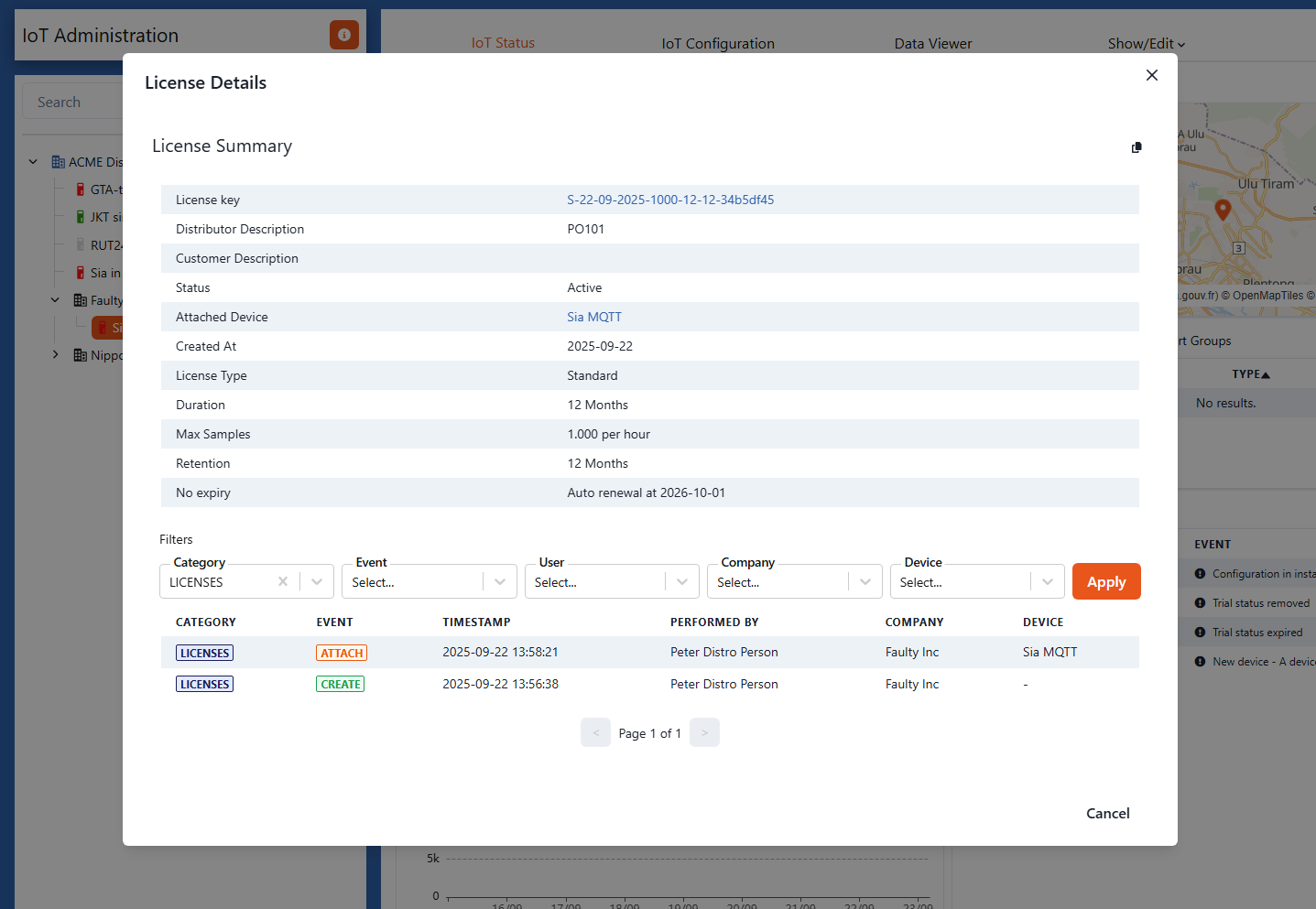
If you create a new license, the customer can click the three dots and select Attach License.
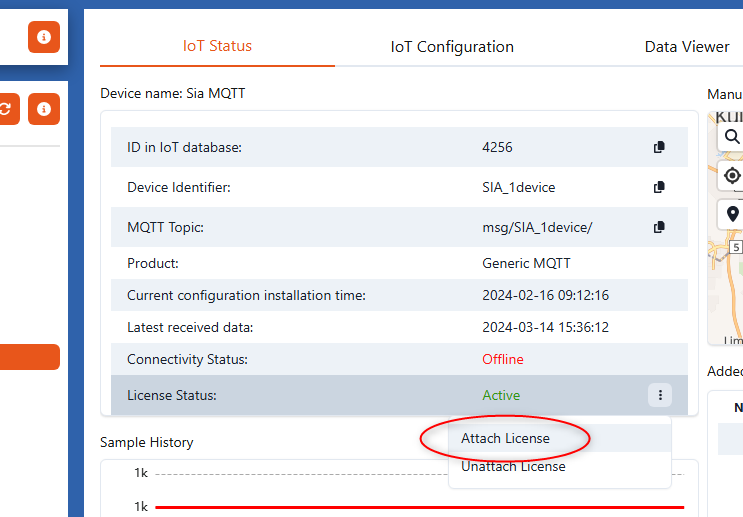
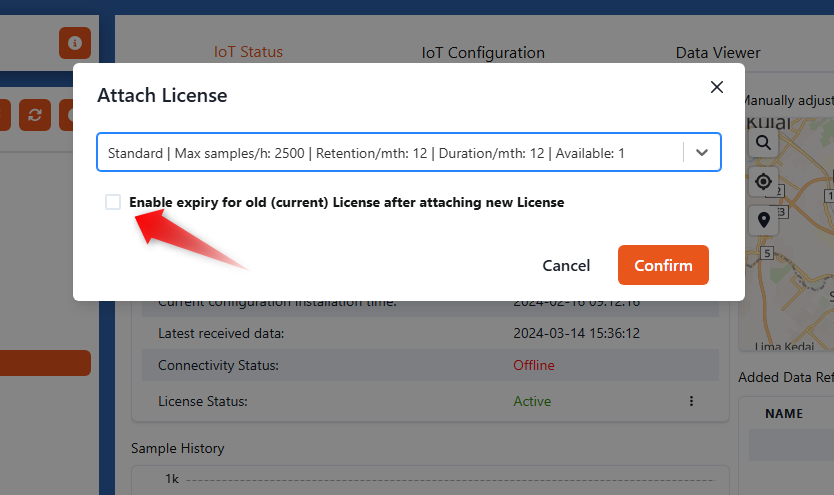
The list will display eligible replacement licenses (e.g. Max Samples 2500 per hour). The customer also has the option to enable expiry of the old license to avoid automatic renewal at the end of its duration. Customers can toggle this setting at any time before expiry.