Event widget
Last edited: June 10th 2026
The Event Widget is used to visualize time-based events in a machine, process, or production environment. Unlike traditional trend graphs that focus on continuous measurements such as temperature, pressure, or power consumption, the Event Widget is designed to display discrete occurrences and state changes over time.
An event represents something meaningful happening in a system. Depending on the application, an event can represent:
- Alert occurrences: Such as machine warnings/errors.
- State transitions: For example a machine changing from Running to Stopped, or moving between operational states.
- Batch changes: Used to indicate transitions between batches, production orders, or process phases.
The Event Widget makes it possible to quickly identify when events occurred, how long they lasted, and how they relate to surrounding operational data.
For the Event Widget, it is possible to select both regular Data Sources and Data Refinement Groups.
When using Data Refinement Groups, it is further possible to exclude specific translations if needed. This can be useful when only a subset of states or events should be included in the visualization.

Available Views
The Event Widget supports three visualization modes depending on the type of analysis required:
Column View
The Column View focuses on displaying individual events as distinct entries in a timeline-like representation, where each row represents a single event occurrence defined by a start and stop timestamp.
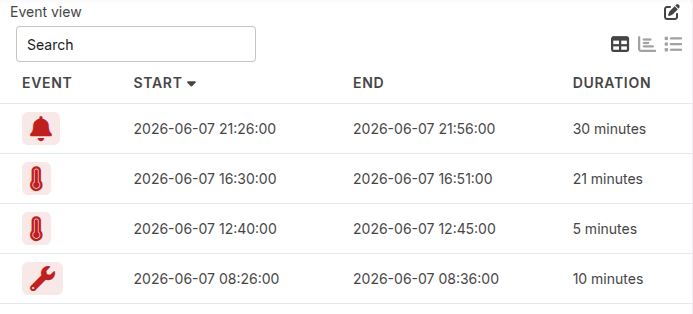
By selecting a row, the dashboard timeframe automatically adjusts to match the selected event duration. This makes the Column View particularly useful when investigating a specific batch, machine state, or Alert occurrence, as the user can quickly focus on the exact period in which the event took place.
For alerts, it is often beneficial to investigate the conditions leading up to the event rather than only the event itself. Since the root cause frequently develops over time, the Column View supports shifting the selected timeframe to include a configurable period before the event occurred. This makes it possible to inspect the buildup to an alert, helping users identify patterns, abnormal operating conditions, or early warning indicators.
Stacked View
The Stacked View provides an aggregated visualization of events within the selected timeframe. Unlike the Column View, which focuses on individual event occurrences, the Stacked View ssummarizes events in a bar chart, making it easier to compare event frequency and distribution over time.
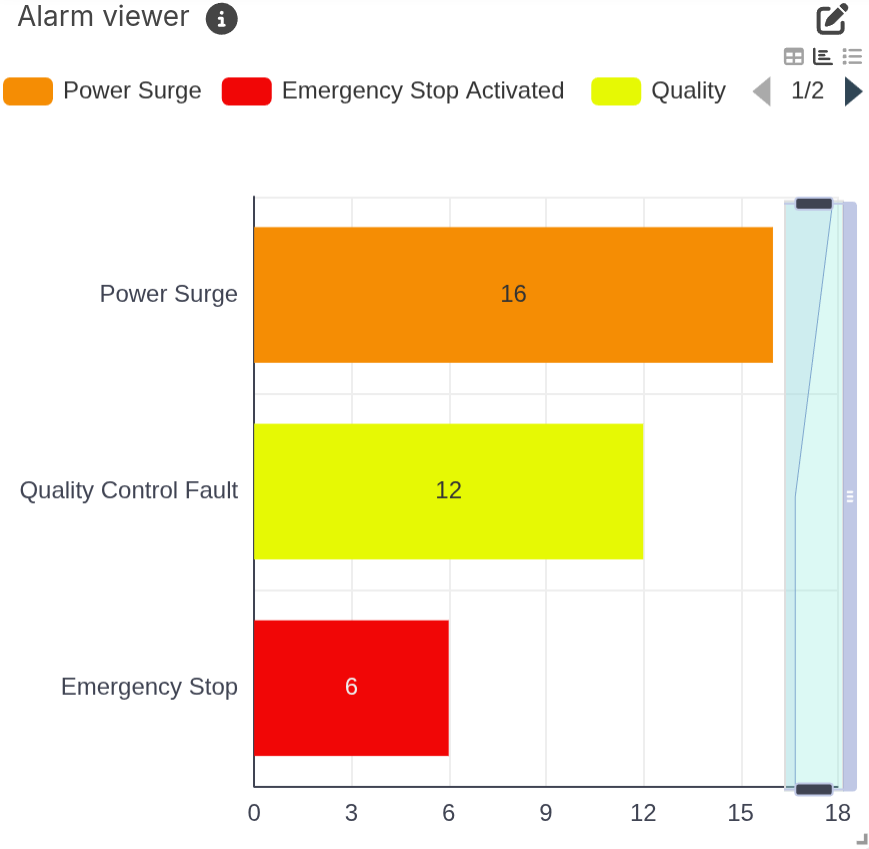
This view is particularly useful for:
- Identifying which events occur most frequently
- Comparing event occurrences across a timeframe
- Understanding overall operational patterns
- Quickly identifying recurring issues
Accumulated View
Note:
Only works with Data Refinement Fields.
The Accumulated View provides an aggregated overview of events within the selected timeframe, similar to the Stacked View. However, instead of displaying events in a bar chart, the data is presented in a table-like format for easier comparison and inspection.
Additionally, it is possible to display the current state of the selected Data Refinement Field. This can be useful for quickly identifying whether a machine is currently experiencing an active alert, or to understand the machine’s current operational state.
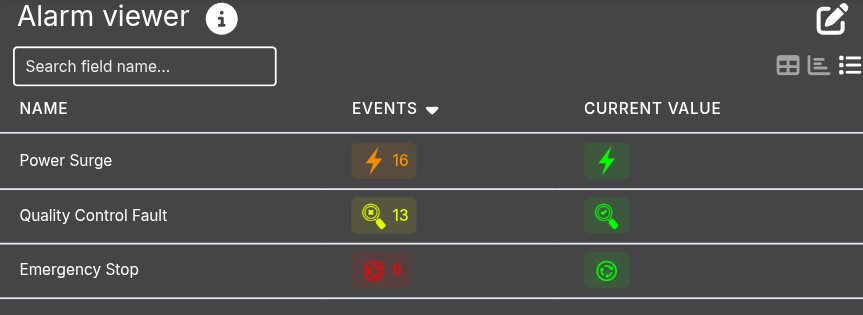
This view is useful for:
- Reviewing event occurrences
- Comparing event counts
- Monitoring the current machine or process state
- Creating operational overview dashboards
Widget configuration
The following configuration options are available in the widget settings:

- Add Search Bar: Adds a search bar to the widget, allowing users to quickly search and filter specific events. This can be useful when working with large event datasets or when searching for a specific alert, batch, or state transition.
- Show Current Value in Accumulated View: Displays the current state/value of the selected Data Refinement Field in the Accumulated View.
- Timeshift Before Event: Defines a configurable time offset before an event starts when selecting an event in the Column View.
- Visible Columns: Defines which columns should be shown in the widget view.