External API
Article version 1.0
This guide describes how to create API keys in the DCC, and how to use them to extract data from the DCC.
Prerequisites
- You have an Administrator account on the Data Collection Cloud.
Creating an API token
To access the API, a read-only API key is required. API keys for external communication are issued per company. If compromised, it can be deleted and replaced.
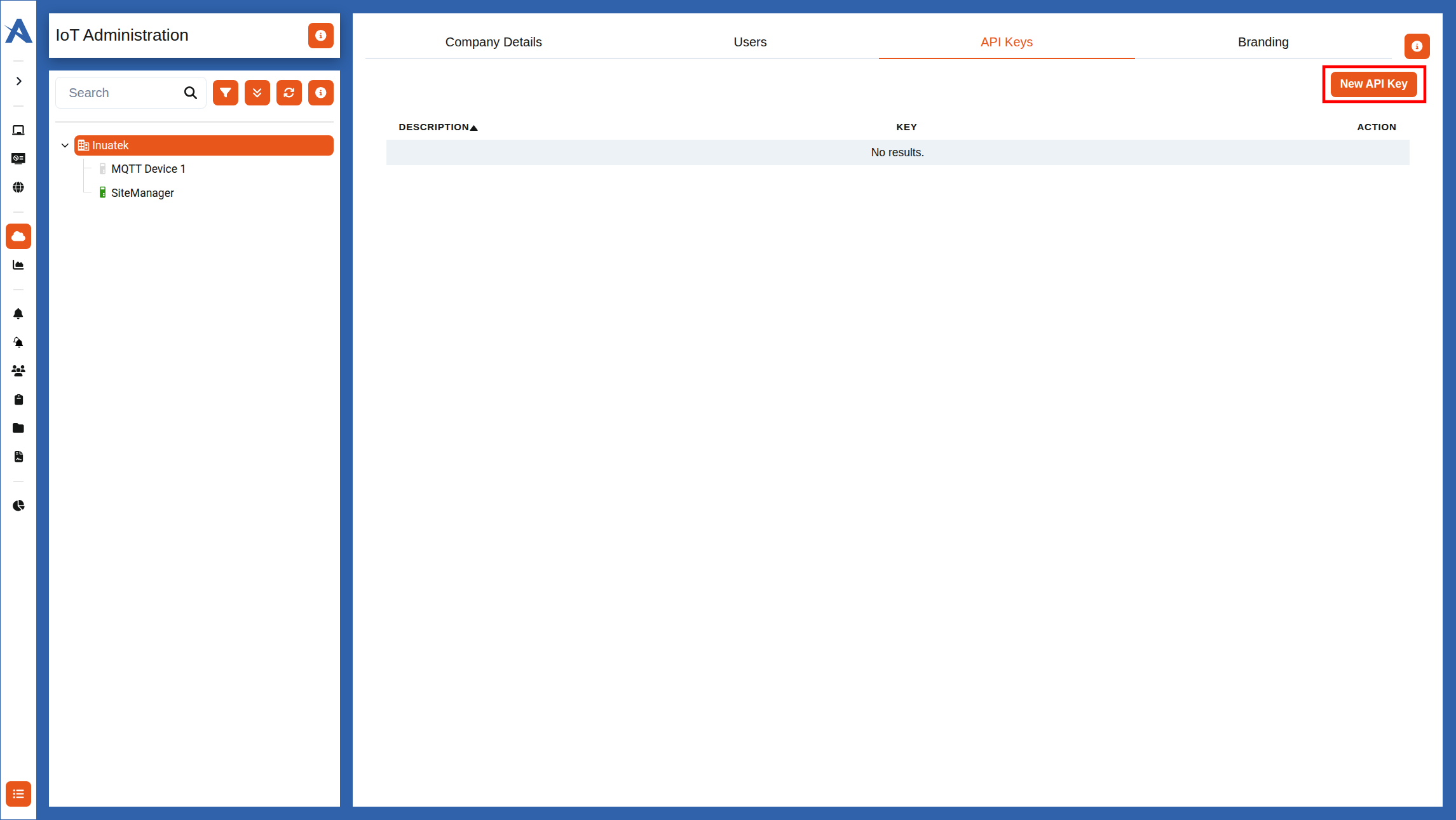
To create a key, go to the IoT Administration page and select the Company. Then, select the API Keys tab:
An overview of the current API keys will be displayed. From here, you can manage the current keys, or create a new one using the New API Key button:
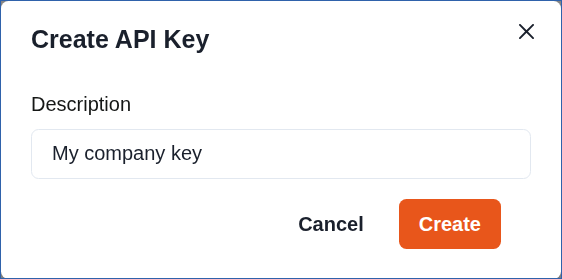
Enter a description for the key, and continue by clicking Create:
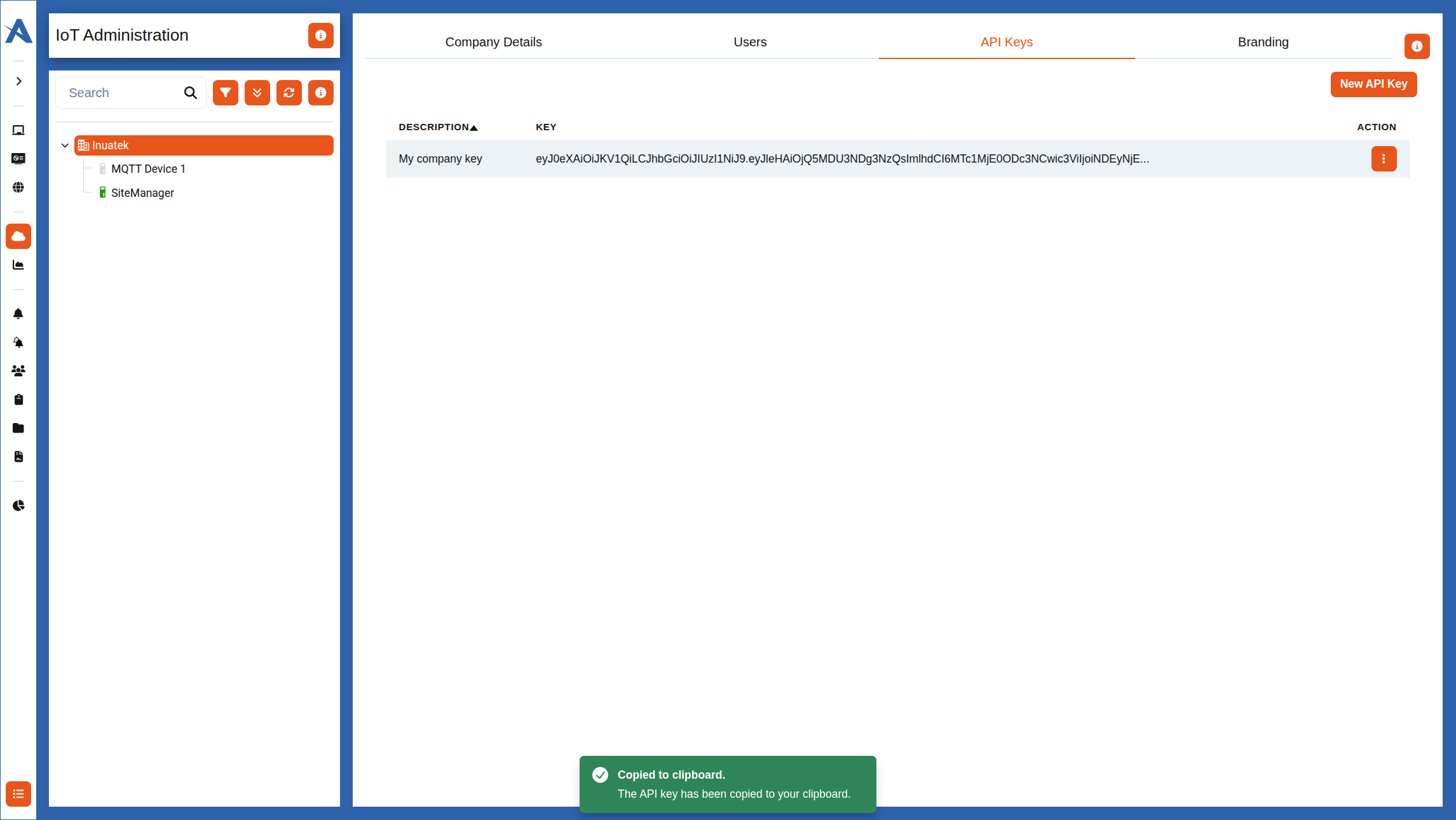
Your new key will then be listed in the API Keys overview. Click on it, or use the copy button, then paste it into your code or API client. Provide the key as an Authorization header in your request.
Supported endpoints
Communication between an external dashboard and the NBI is encrypted, e.g. requires HTTPS calls.
Note: Only sample data retrieval is currently supported.
Get Sample data
To get sample data, a POST request must be made on the following endpoint:
https://nbi.inuatek.com/v2/sample_points
The endpoint retrieves sample data for multiple sample points from one or more devices. Specify which data to collect using {device_id}, {collector}, and {sample_name}.
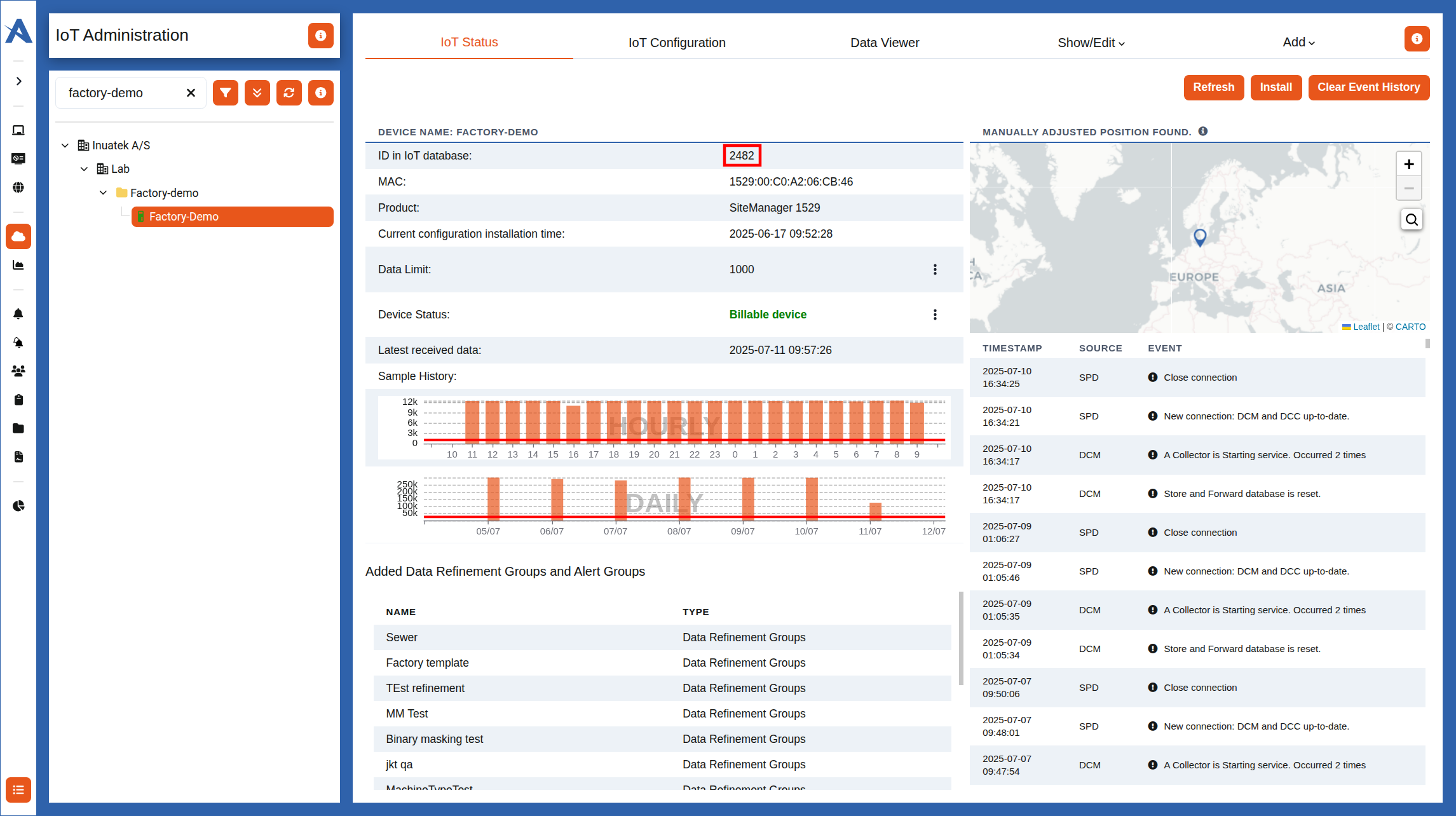
{device_id} is the ID of the Device, which can be found on the IoT Administration page by selecting the desired Device, see image below:
{collector} and {sample_name} are found in the JSON configuration of the Device, and in the tree structure of the Data Viewer. On the image below, (1) denotes the Collector name and (2) a sample name.
The
{collector}and{sample_name}are case sensitive.
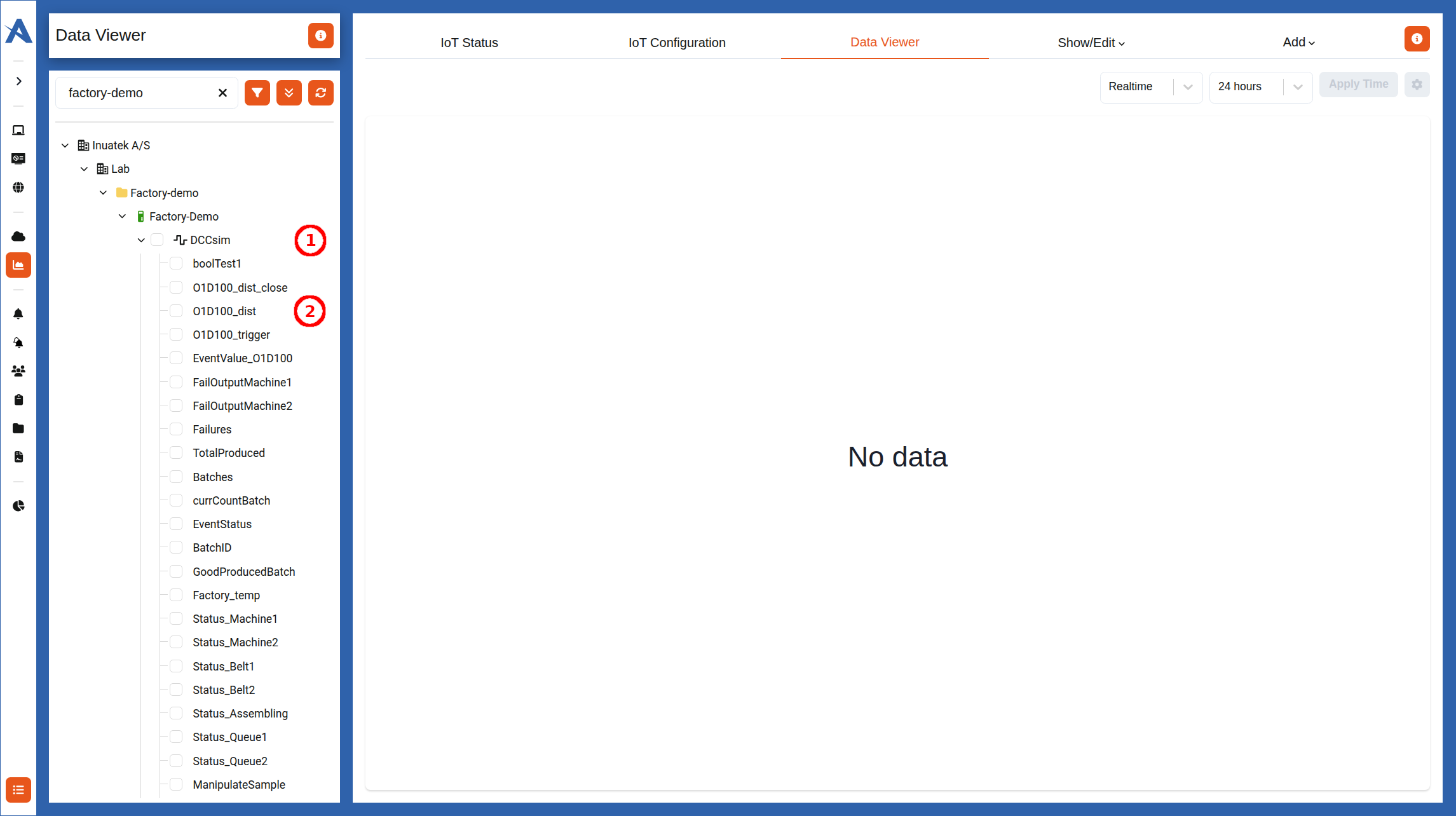
For each sample point, include a JSON object in the POST request body with the following format:
"dataunits" [
    {
        "dcmID": {device_id},
        "collectorName": {collector},
        "sampleName": {sample_name}
    },
    ...
    {
        "dcmID": {device_id},
        "collectorName": {collector},
        "sampleName": {sample_name}
    }
]
Parameters
Additional parameters must be provided, to specify which data should be collected. Below is a list of possible parameters and whether they are required or not:
- from (required)
- to (required)
- period (optional)
- maxsamples (optional)
- latestData (optional)
- dataOperation (optional)
The parameters are included in the POST request body by including the following JSON:
{
    "from": ,
    "to": ,
    "period": ,
    "maxsamples": ,
    "latestData": ,
    "dataOperation": ,
    "dataunit": [...]
}
from & to
from and to are the start and stop dates. The dates can be provided as either epoch in seconds or as a date string. String date format should follow 'YYYY-MM-DD HH:MM:SS', e.g '2024-09-18 10:00:00'. The date, whether being a date string or epoch seconds, must be in UTC.
period
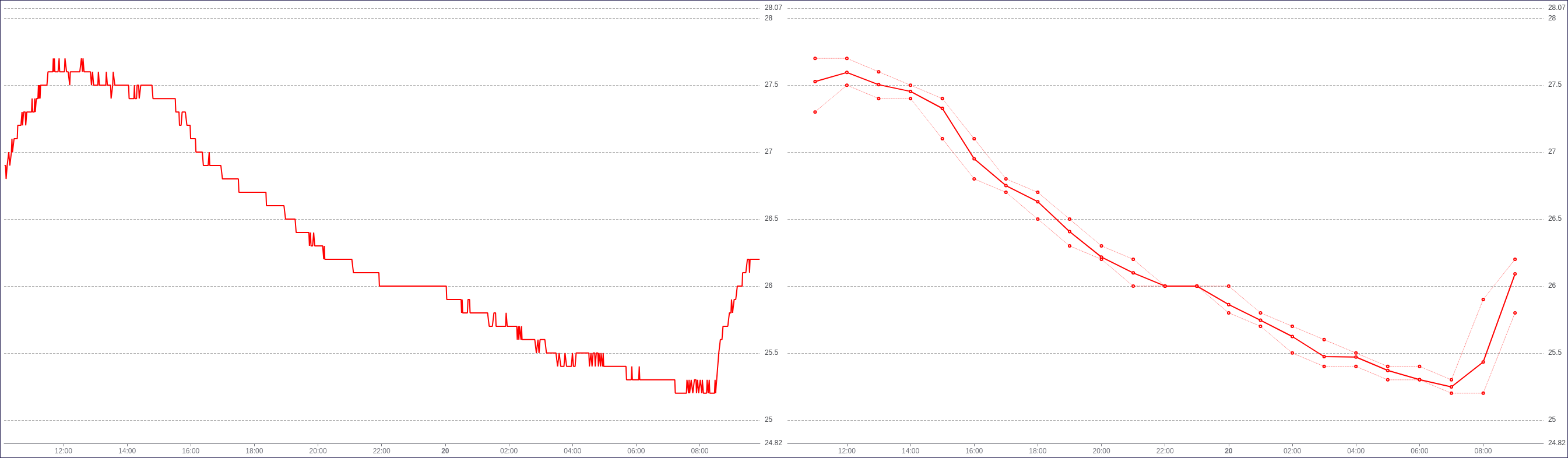
period is used to aggregate raw data into an average, minimum and maximum over intervals defined in seconds. If period is set to zero, raw data is returned from the API. period is useful to achieve an overview over large amounts of raw data.
Below, a period of zero seconds is used on the left graph, and a period of 3600 seconds (1 hour) on the right graph.
maxsamples
maxsamples takes interger values between 0 and 1.000.000, and is used to limit the amount of data returned from the API. If maxsamples is left blank, all data within the specified timeinterval will be returned*.
* A maximum of 1.000.000 samples can be returned.
latestData
latestData specifies whether to collect data from the end (to) or the beginning (from). It matters only if maxsamples is fewer than the samples between from and to. When set to true, the API returns maxsamples from the to timestamp. If not provided, the default is true.
dataOperation
dataOperation can be used to manipulate the requested data.
The only supported operation is delta, which is used to calculate the delta of values within the specified time interval. When the delta operation is used, period must also be specified. The granularity of the delta operation is either minutes, hours or days. If period is less than 60 seconds, the period will default to 1 minute.
Get Translated data
To get translated data, a POST request must be made on the following endpoint:
https://nbi.inuatek.com/v2/datarefinement/data
The endpoint retrieves translated data for multiple fields from one or more devices. Specify which data to collect using {device_id} and {field_id}.
{device_id} is the ID of the Device, which can be found on the IoT Administration page by selecting the desired Device, see image below:
{field_id} is the ID of the Data Refinement Field, which can be found on the Data Refinement page by selecting the desired Field, click on the button to copy the ID to the clipboard see image below.
NB: Only Sample Point type fields can be used.:
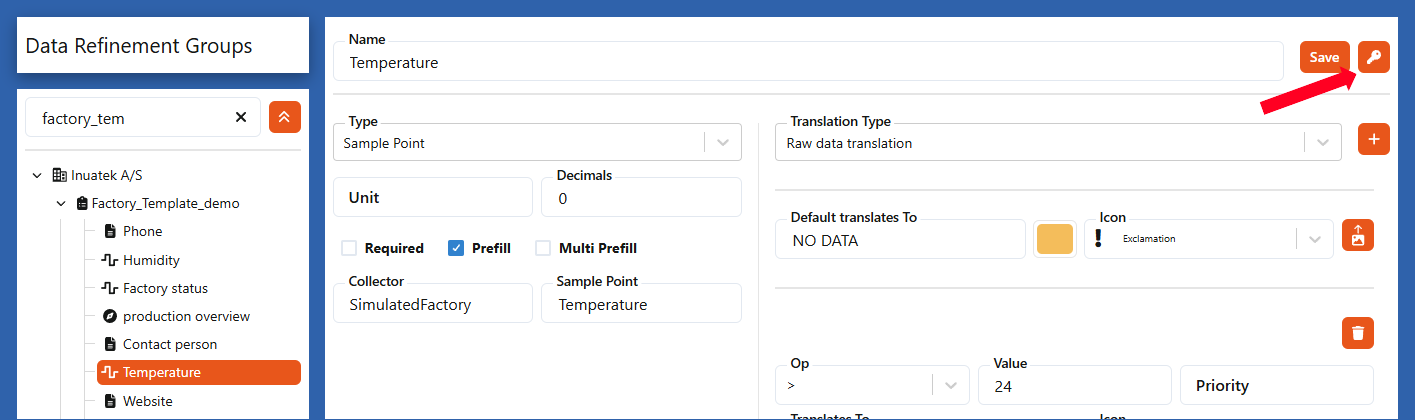
For each device, include a JSON object in the POST request body with the following format:
"dataunits" [
    {
        "dcmID": {device_id},
        "fieldIds": [
            {field_id},
        ]
    },
    ...
    {
        "dcmID": {device_id},
        "fieldIds": [
            {field_id},
            {field_id2}
        ]
    }
]
Parameters
Additional parameters must be provided, to specify which data should be collected. Below is a list of possible parameters and whether they are required or not:
The parameters are included in the POST request body by including the following JSON:
{
    "from": ,
    "to": ,
    "dataunit": [...]
}
from & to
from and to are the start and stop dates. The dates can be provided as either epoch in seconds or as a date string. String date format should follow 'YYYY-MM-DD HH:MM:SS', e.g '2024-09-18 10:00:00'. The date, whether being a date string or epoch seconds, must be in UTC.
Examples
The API can be accessed with ease using a RESTful API client such as Postman. The API key can be applied using the Authorization tab of the Postman application. Remember to select "Header" as the "Add to" option.

The request body can be entered in the Body tab. Using the "raw" option along with "JSON" in the dropdown will allow proper formatting of the JSON body.
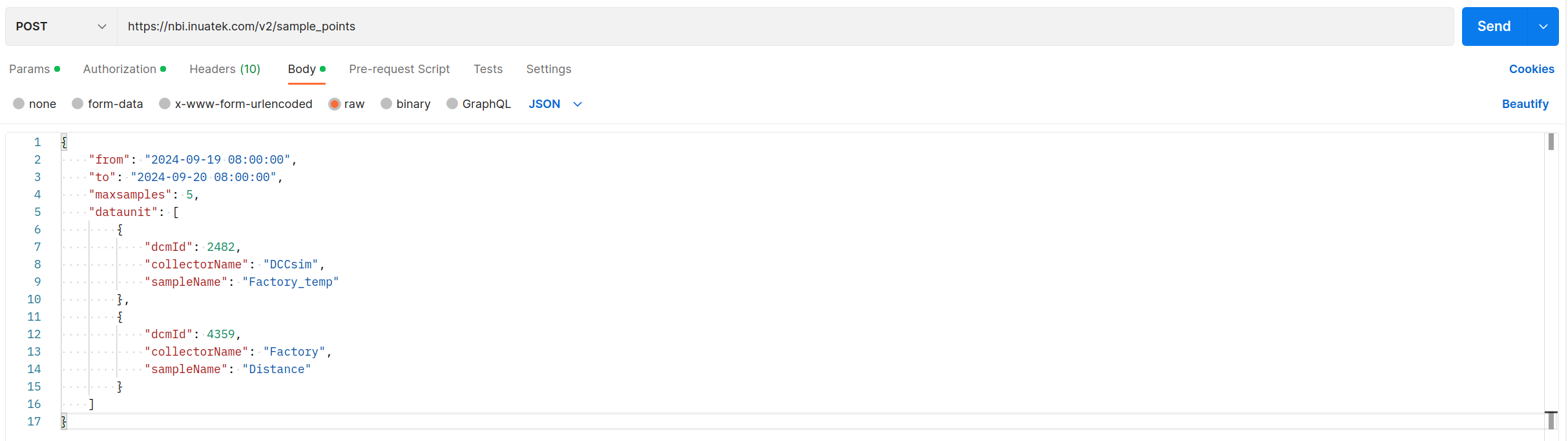
The body used in the picture above is the same body used in the example below.
Get sample data for one or more sample points
We will collect the data displayed on the graph above, but only select 5 samples. The ID of the Device is 2482, the collector is "DCCsim" and the sample point is called "Factory_temp". The endpoint for collecting data is:
https://nbi.inuatek.com/v2/sample_points/
We will use the following parameters:
- from: '2024-09-19 08:00:00'
- to: '2024-09-12 08:00:00'
- maxsamples: 5
We will not specify the latestData parameter, but simply leave the API to use the default value of true. This will collect the 5 latest data points, within the from-to interval.
We can now construct the POST request body:
{
  "from": "2024-09-19 08:00:00",
  "to": "2024-09-20 08:00:00",
  "maxsamples": 5,
  "dataunit": [
    {
      "dcmId": 2482,
      "collectorName": "DCCsim",
      "sampleName": "Factory_temp"
    }
  ]
}
The successful response from the API is an array with the dataunits. Each unit contains an array (data) of samples. The format of the data is also an array. The first entry is the timestamp and the second entry is the sample value.
{
  "meta": {
    "code": 200,
    "message": "OK"
  },
  "data": [
    {
      "data": [
        [1726704049.6828, "25.3"],
        [1726704109.682791, "25.3"],
        [1726704169.68279, "25.2"],
        [1726704229.682826, "25.3"],
        [1726704289.682813, "25.3"]
      ],
      "sampleName": "Factory_temp",
      "collectorName": "DCCsim",
      "dcmId": 2482,
      "dataType": "float"
    }
  ]
}
If we wish to collect sample points from multiple devices, we can easily construct another dataunit JSON object, and add this to our request body.
We will extend the above request body with the following dataunit:
{
  "dcmId": 4359,
  "collectorName": "Factory",
  "sampleName": "Distance"
}
The request body now becomes:
{
  "from": "2024-09-19 08:00:00",
  "to": "2024-09-20 08:00:00",
  "maxsamples": 5,
  "dataunit": [
    {
      "dcmId": 2482,
      "collectorName": "DCCsim",
      "sampleName": "Factory_temp"
    },
    {
      "dcmId": 4359,
      "collectorName": "Factory",
      "sampleName": "Distance"
    }
  ]
}
The response from the API is then:
{
    "meta": {
        "code": 200,
        "message": "OK"
    },
    "data": [
        {
            "data": [
                [
                    1726704000.434,
                    "2113"
                ],
                ...
                [
                    1726704020.559,
                    "2113"
                ]
            ],
            "sampleName": "Distance",
            "collectorName": "Factory",
            "dcmId": 4359,
            "dataType": "int16"
        },
        {
            "data": [
                [
                    1726704049.6828,
                    "25.3"
                ],
                ...
                [
                    1726704289.682813,
                    "25.3"
                ]
            ],
            "sampleName": "Factory_temp",
            "collectorName": "DCCsim",
            "dcmId": 2482,
            "dataType": "float"
        }
    ]
}
Get delta values from a single sample point
This example will use the delta data operation. We will collect data from a device, which has a aggregated sample point. The ID of the device is 4293, the collector is "DCCsim" and the sample point is called "counter". The value of "counter" increases by approximately 1 every second.
The endpoint for collecting data is:
https://nbi.inuatek.com/v2/sample_points/
We will use the following parameters:
- from: '2024-09-19 08:00:00'
- to: '2024-09-12 08:00:00'
- dataOperation: 'delta'
- period: 60
By specifying a period of 60 (seconds) we will get delta values for 1 minute intervals.
We can now construct the POST request body:
{
  "from": "2024-09-19 08:00:00",
  "to": "2024-09-20 08:00:00",
  "dataOperation": "delta",
  "period": 60,
  "dataunit": [
    {
      "dcmId": 4293,
      "collectorName": "DCCsim",
      "sampleName": "counter"
    }
  ]
}
The successful response from the API is an array with the dataunits. Each unit contains an array (data) of samples. The format of the data is also an array. The first entry is the timestamp and the second entry is the delta value.
{
    "meta": {
        "code": 200,
        "message": "OK"
    },
    "data": [
        {
            "data": [
                [
                    1726819140,
                    "59"
                ],
                [
                    1726819080,
                    "59"
                ],
                ...
                [
                    1726732800,
                    "59"
                ]
            ],
            "sampleName": "counter",
            "collectorName": "DCCsim",
            "dcmId": 4293,
            "dataType": "int32"
        }
    ]
}
We see that the "counter" sample point increases by 59 every minute.
Get translated data for one devices with multiple fields
We will collect translated data from a device, which has two Data Refinement Fields. The ID of the Device is 4729, and the Field IDs are a270d918-928f-4574-8b5d-5fd9894c68f9 and f9368666-6c3e-4198-8c17-0397d960a348. The endpoint for collecting data is:
https://nbi.inuatek.com/v2/datarefinement/data
We will use the following parameters:
- from: '2025-07-01 08:00:00'
- to: '2025-07-01 09:00:00'
We can now construct the POST request body:
{
  "from": "2025-07-01 08:00:00",
  "to": "2025-07-02 08:00:00",
  "dataunit": [
    {
      "dcmId": 4729,
      "fieldIds": [
        "a270d918-928f-4574-8b5d-5fd9894c68f9",
        "f9368666-6c3e-4198-8c17-0397d960a348"
      ]
    }
  ]
}
The successful response from the API is an array with the device and one field. Each field contains an array (fieldData) of translated data.
{
    "data": [
        {
            "fieldId": "a270d918-928f-4574-8b5d-5fd9894c68f9",
            "dcmId": 4729,
            "fieldData": [
                {
                    "timestamp": 1751356810,
                    "value": "Normal Temperature",
                    "icon": "thermometer-half",
                    "color": {
                        "a": 1,
                        "b": 0,
                        "g": 255,
                        "r": 0
                    },
                    "formattedData": "21.98",
                    "formattedValue": "21.98"
                },
                ...
                {
                    "timestamp": 1751357690,
                    "value": "Low Temperature",
                    "icon": "thermometer-empty",
                    "color": {
                        "a": 1,
                        "b": 244,
                        "g": 79,
                        "r": 6
                    },
                    "formattedData": "17.75",
                    "formattedValue": "17.75"
                }
            ]
        },
        {
            "fieldId": "f9368666-6c3e-4198-8c17-0397d960a348",
            "dcmId": 4729,
            "fieldData": [
                {
                    "timestamp": 1751356810,
                    "value": "Normal pressure",
                    "icon": "cog",
                    "color": {
                        "a": 1,
                        "b": 0,
                        "g": 255,
                        "r": 0
                    },
                    "formattedData": "5.63 mm",
                    "formattedValue": "5.63"
                },
                ...
                {
                    "timestamp": 1751357690,
                    "value": "Normal pressure",
                    "icon": "cog",
                    "color": {
                        "a": 1,
                        "b": 0,
                        "g": 255,
                        "r": 0
                    },
                    "formattedData": "5.55 mm",
                    "formattedValue": "5.55"
                }
            ]
        }
    ],
    "meta": {
        "code": 200,
        "description": "",
        "message": "OK"
    }
}
If we wish to collect translated data from multiple devices, we can easily construct another dataunit JSON object, and add this to our request body.
We will extend the above request body with the following dataunit:
{
  "dcmId": 4697,
  "fieldIds": [
    "a270d918-928f-4574-8b5d-5fd9894c68f9",
    "f9368666-6c3e-4198-8c17-0397d960a348"
  ]
}
NB: It is possible to collect different fields for each device, by specifying different fieldIds for each dcmId. But for simplicity, we will use the same fields for both devices in this example.
The request body now becomes:
{
  "from": "2025-07-01 08:00:00",
  "to": "2025-07-02 08:00:00",
  "dataunit": [
    {
      "dcmId": 4729,
      "fieldIds": [
        "a270d918-928f-4574-8b5d-5fd9894c68f9",
        "f9368666-6c3e-4198-8c17-0397d960a348"
      ]
    },
    {
      "dcmId": 4697,
      "fieldIds": [
        "a270d918-928f-4574-8b5d-5fd9894c68f9",
        "f9368666-6c3e-4198-8c17-0397d960a348"
      ]
    }
  ]
}
The response from the API is then:
{
    "meta": {
        "code": 200,
        "message": "OK"
    },
    "data": [
        {
            "fieldId": "a270d918-928f-4574-8b5d-5fd9894c68f9",
            "dcmId": 4729,
            "fieldData": [
                {
                    "timestamp": 1751356810,
                    "value": "Normal Temperature",
                    "icon": "thermometer-half",
                    "color": {
                        "a": 1,
                        "b": 0,
                        "g": 255,
                        "r": 0
                    },
                    "formattedData": "21.98",
                    "formattedValue": "21.98"
                },
                ...
            ]
        },
        {
            "fieldId": "f9368666-6c3e-4198-8c17-0397d960a348",
            "dcmId": 4729,
            "fieldData": [
                {
                    "timestamp": 1751356810,
                    "value": "Normal pressure",
                    "icon": "cog",
                    "color": {
                        "a": 1,
                        "b": 0,
                        "g": 255,
                        "r": 0
                    },
                    "formattedData": "5.63 mm",
                    "formattedValue": "5.63"
                },
                ...
            ]
        },
        {
            "fieldId": "a270d918-928f-4574-8b5d-5fd9894c68f9",
            "dcmId": 4697,
            "fieldData": [
                {
                    "timestamp": 1751356810,
                    "value": "Normal pressure",
                    "icon": "cog",
                    "color": {
                        "a": 1,
                        "b": 0,
                        "g": 255,
                        "r": 0
                    },
                    "formattedData": "20.14",
                    "formattedValue": "20.14"
                },
                ...
            ]
        },
        {
            "fieldId": "f9368666-6c3e-4198-8c17-0397d960a348",
            "dcmId": 4697,
            "fieldData": [
                {
                    "timestamp": 1751356810,
                    "value": "High Pressure",
                    "icon": "bell",
                    "color": {
                        "a": 1,
                        "b": 7,
                        "g": 14,
                        "r": 241
                    },
                    "formattedData": "4.88 mm",
                    "formattedValue": "4.88"
                },
                ...
            ]
        }
    ]
}