Connecting a Teltonika Telematics device
Last edited: July 24th 2025
Prerequisites
The device model used in this guide is the FMC640. There may be variations using other models or firmware version.
- An FMC640 Teltonika device running MQTT Firmware (This is not default: The process of flashing the MQTT firmware to your FMC640 will not be described in this section, and you should instead contact your Teltonika representative. If your point of purchase is Inuatek, we will ensure this is done before shipment.)
- Windows machine with Teltonika Configurator
- You have an account on the Inuatek Data Collection Cloud
- Successfully added a FMC640 device in the IoT Tree. See Adding an MQTT device in IoT Administration
Preparing the FMC640
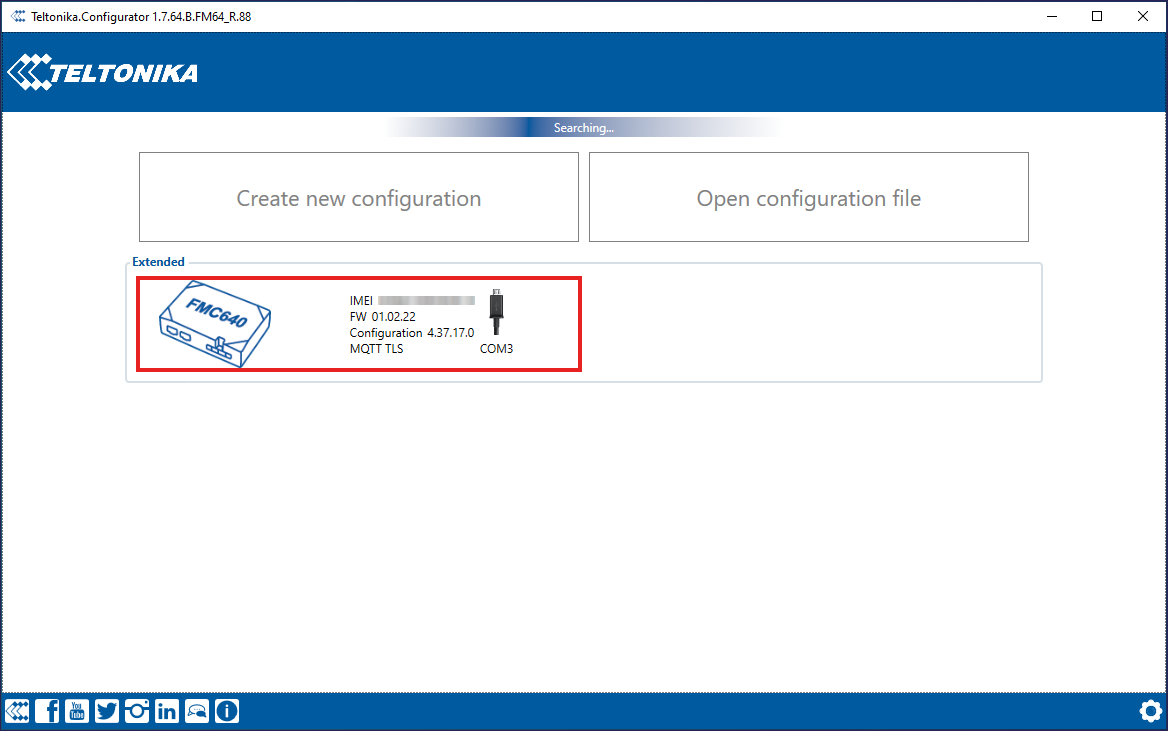
Open the Teltonika Configurator application and connect your FMC640 to your machine via the USB cable.
When the FMC640 has been recognized it should appear in the application:
Click on the device. In the menu on the left, select the GPRS tab:
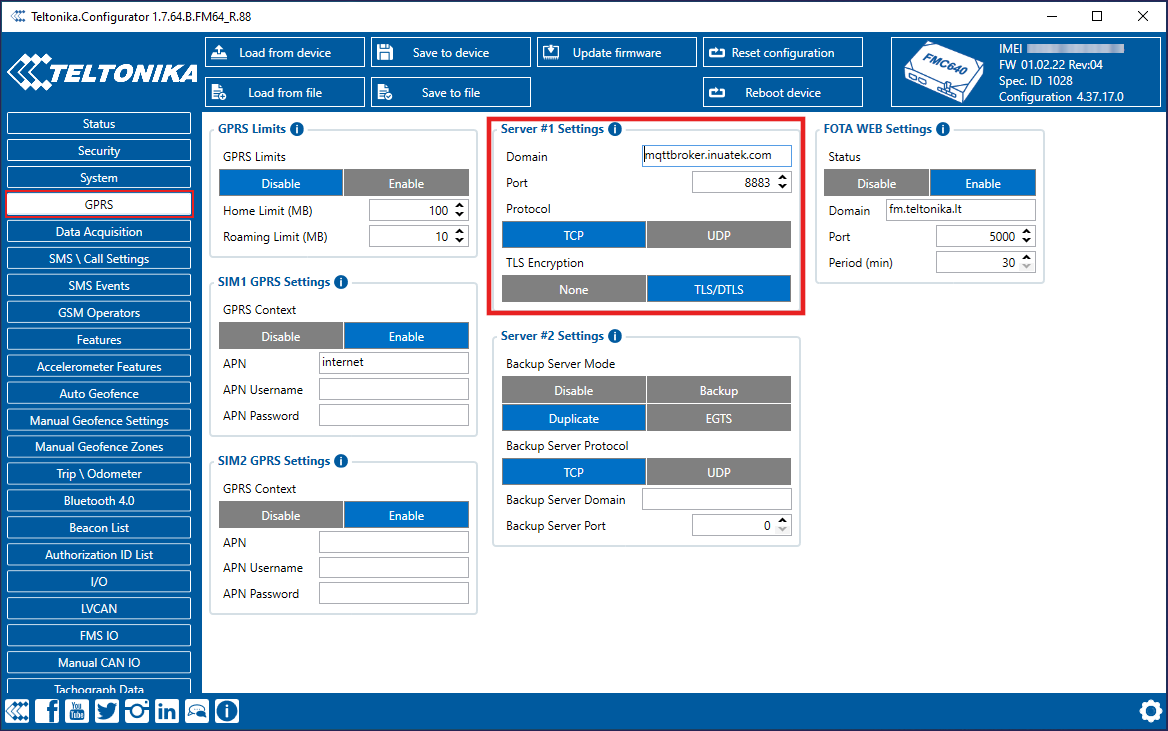
On the GPRS page we will set up the connection to the MQTT Broker in the DCC. Set up Server #1 with the following information:
- Domain: mqttbroker.inuatek.com
- Port: 8883
- Protocol: TCP
- TLS Encryption: TLS/DTLS
Note: The specific domain for your device can be found in the README.md file included with your downloaded certificate package.
Click Save to device.
Uploading certificates
Head to the Security page by clicking the Security tab:
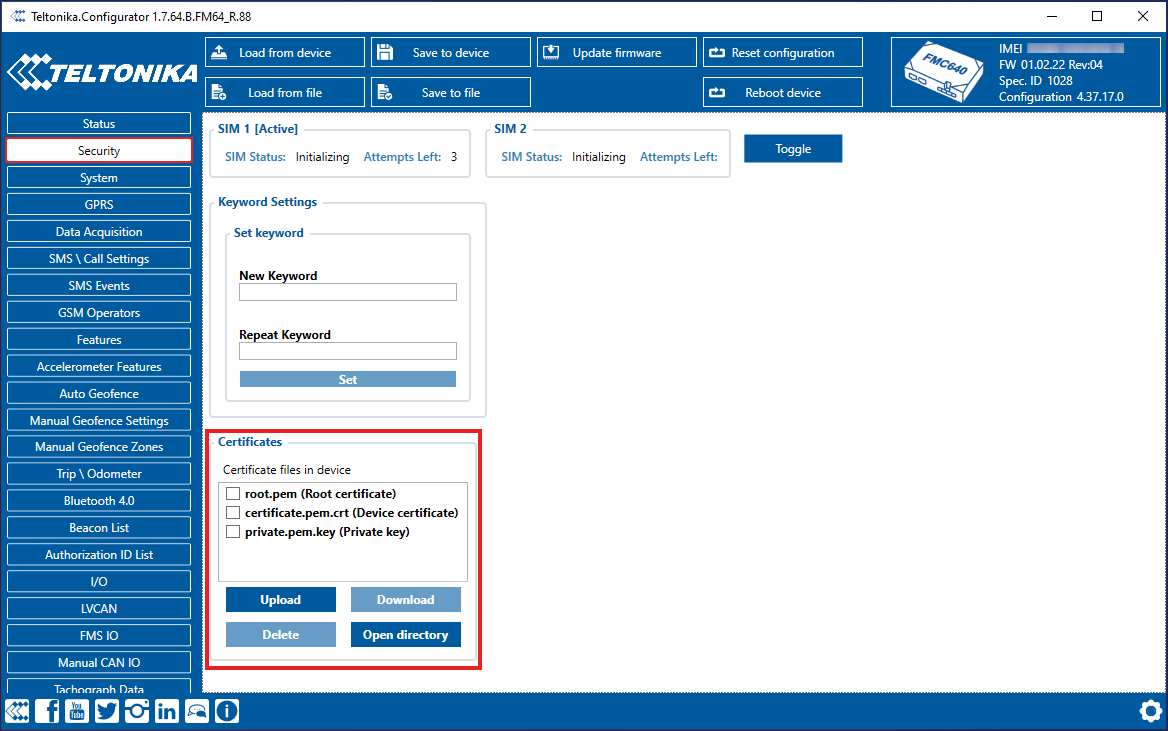
On the Security page you can upload the Certificates which you obtained when the device was created. Three files must be uploaded:
- root.pem
- certificate.pem.crt
- private.pem.key
Click Save to device.
If you have successfully configured the Server and uploaded your certificates your device should now be able to connect to the MQTT Broker. Data will not be present in the DCC unless an IoT Configuration has been made.
Creating an IoT Configuration for a FMC640 device
If you are setting up a Teltonika device that is identical to an already connected Teltonika device you may simply copy/paste the IoT Configuration.
If you are setting up a new device, simply configure the desired Tags on the Teltonika Configurator. The DCC will automatically create new Sample point entries in the IoT Configuration when new Sample points are received. The Sample points will be named after their IOID.
Teltonika devices use a datastructure called AVL data. Each AVL data packet contain a header with general information about the device, followed by a list of IO elements. Each IO element has a hardcoded ID. The list of IOIDs is the same across different devices of the same model. Different models may however have different IOIDs. The list of IOIDs of the FMC640 can be found on the Teltonika Wiki.
Example Sample Point
The IOID 66 represents the External Voltage of the FMC640. To add this element as a Sample Point the following JSON element is used:
{
    "SampleDataType": "uint16",
    "SampleDescription": "Voltage supplied to the device",
    "SampleName": "External Voltage",
    "SampleUnit": "mV",
    "CustomNameIndex": 66
}
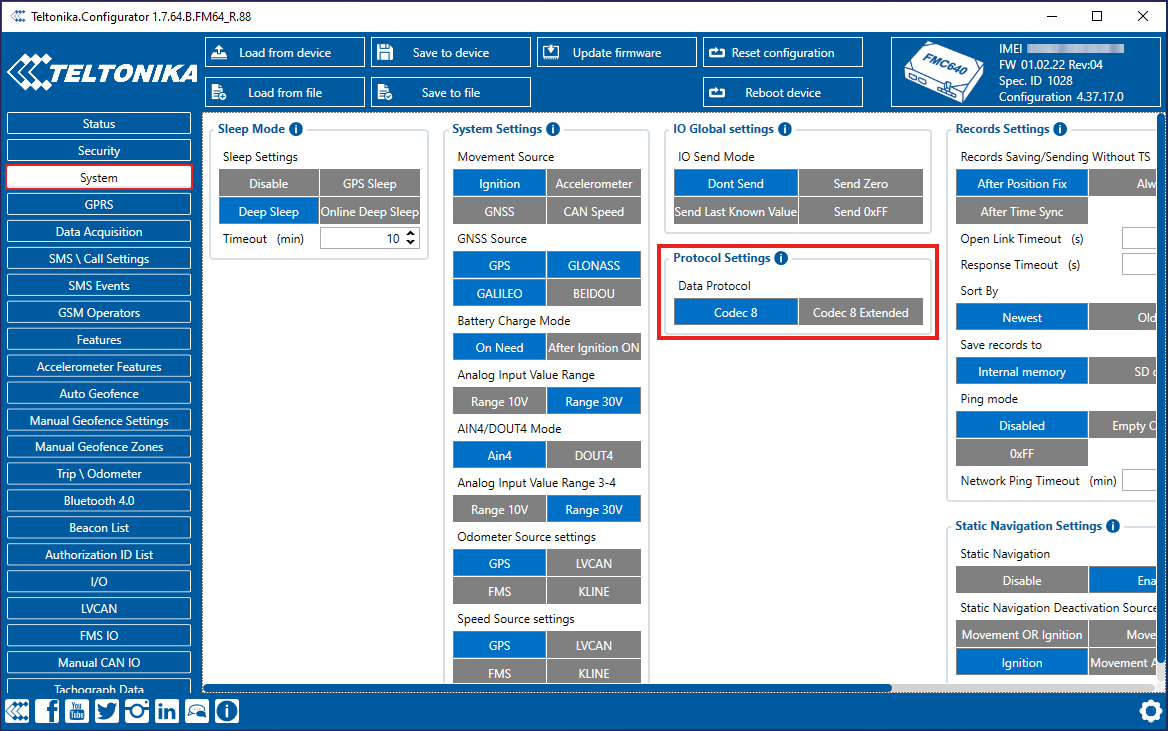
Depending on the Protocol used, some IOIDs may not be available. Codec 8 only support IOIDs less than 256. To use the rest of the available IOIDs the Protocol should be set to Codec 8 Extended. This can be selected in the System tab:
Name Indexes of GPS data
The GPS data contained in the AVL header are not associated with any IOIDs. Instead, the DCC uses hardcoded Name Indxes for AVL GPS data. If you wish to include the GPS data in your IoT Configuration you may use the following Collector. Remember to replace the MQTT topic such that it contains the serial of your FMC640 device. You can also simply copy the individual Sample Points.
{
    "CollectorName": "GPS",
    "CollectorDescription": "Teltonika AVL GPS information",
    "SamplePoints": [
        {
            "SampleDataType": "float",
            "SampleDescription": "East - west position",
            "SampleName": "Longitude",
            "SampleUnit": "",
            "CustomNameIndex": -1
        },
        {
            "SampleDataType": "float",
            "SampleDescription": "North - south position",
            "SampleName": "Latitude",
            "SampleUnit": "",
            "CustomNameIndex": -2
        },
        {
            "SampleDataType": "int16",
            "SampleDescription": "Meters above sea level",
            "SampleName": "Altitude",
            "SampleUnit": "",
            "CustomNameIndex": -3
        },
        {
            "SampleDataType": "uint16",
            "SampleDescription": "Degrees from north pole",
            "SampleName": "Angle",
            "SampleUnit": "",
            "CustomNameIndex": -4
        },
        {
            "SampleDataType": "uint16",
            "SampleDescription": "Satellites",
            "SampleName": "Number of visible satellites",
            "SampleUnit": "",
            "CustomNameIndex": -5
        },
        {
            "SampleDataType": "uint16",
            "SampleDescription": "Speed calculated from satellites",
            "SampleName": "Speed",
            "SampleUnit": "",
            "CustomNameIndex": -6
        }
    ]
}