Connecting an IXON IXrouter3
Last edited: August 17, 2026
Prerequisites
- An IXON IXrouter3 with firmware version 3.28 or higher.
- Access to the IXON Cloud platform for device setup.
- An administrator account on the Inuatek Data Collection Cloud (DCC).
This guide explains how to set up an IXON IXrouter3 to publish data to the DCC.
1. Create a new IXON IXrouter3 device on the DCC
On the DCC, navigate to the IoT administration page. Right-click the company or folder in which the new device should be created:
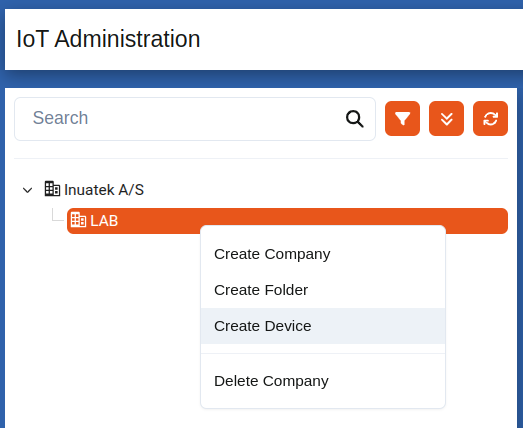
In the dropdown, select IXON IXrouter3.

Choose a suitable name for the new device. The Device Identifier should be the MAC address of the IXrouter3 device. Create the device by clicking the Create Device & download Certificates button. A ZIP archive containing the client certificates will be downloaded to your machine.
2. Connect the IXON IXrouter3 device to the DCC
This section covers:
- Configuring the IXON IXrouter3 on portal.ixon.cloud
- Viewing data on the DCC
2.1 Adding a custom MQTT broker to IXON Cloud
Firmware version 3.28 or higher is required for MQTT connectivity. For further details, refer to IXON's official guide, Datalogging to an MQTT broker.
Log in to the IXON Cloud portal and navigate to the Admin page. Under Device settings, select MQTT:

Click Add custom broker and enter the broker details as follows:
- Name: Enter any name, e.g., DCC.
- Host: Enter the MQTT broker URL. For
dcc.inuatek.com, usemqttbroker.inuatek.com. - Port:
8883. - CA certificate: Upload the
ca.crtfile included in the ZIP archive downloaded when the device was created. - Message format: Select
JSON.
The specific hostname for your device can be found in the
README.mdfile included with the downloaded certificate package.

Then, click the Add client button. Fill out the fields as follows:
- Name: Enter any name, e.g., the device's MAC address.
- Username: Leave empty.
- Password: Leave empty.
- Certificate: Upload the
client.crtfile from the device ZIP archive. - Key file: Upload the
client.keyfile from the device ZIP archive.

Click Add to add the client to the custom broker, then click Confirm to save the custom broker.
The custom broker should now be available in IXON Cloud. The next step is to set up variables and tags and enable data collection using the custom broker.
A custom broker only needs to be created once, as multiple clients can be added to the same broker. Each new client must use the client.crt and client.key included in the certificate package downloaded when the corresponding device was created in DCC.
2.2 Configuring data collection using a custom broker
This step assumes that you have already configured a service for data collection.
Navigate to the device in Fleet Manager, then select the service that should send tags to the DCC:

Enable the Use custom broker option. From the Send data to dropdown, select the DCC broker we created earlier.
For Topic, enter the device's MAC address followed by /. Use the same value as the Device Identifier in the DCC, e.g., C0:D3:91:33:42:43/.
To specify the collector under which the sample points should appear, append
dcc/data/{CollectorName}to the Topic value. For example:C0:D3:91:33:42:43/dcc/data/PLC1.
Save by clicking Confirm changes. Push the configuration to the device to apply the changes.
If tags are already configured, the IXrouter3 should start sending data. This example has six tags defined:

2.3 Viewing data on the DCC
On the DCC, navigate to the Data viewer page from the Device status page or by using the menu on the left. Select the device. Sample points are added automatically when data from the configured tags arrives:

Data is coming through!