Configure a SENECA Z-PASS
Last edited: March 2nd 2026
This guide explains how to setup Two-way communication on the Inuatek Data Collection Cloud (DCC) for the SENCA Z-PASS.
Before You Begin
Ensure:
- A SENECA Z-PASS device configured to connect to the Inuatek Data Collection Cloud, by following Configure a SENECA Z-PASS2 Guide.
- Admin login to the SENECA Web UI
- Admin login to the Inuatek Data Collection Cloud
Preparing the device
Log into the SENECA Web UI of your Z-PASS device. Then, select the Cloud Configuration tab from the menu.
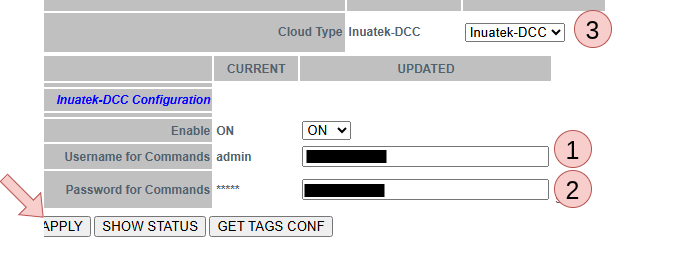
On the Cloud Configuration page enter a username (1) and password (2) which shall be used for authenticating command requests. If the Cloud Type (3) is selected as Inuatek-DCC you can skip the MQTT Configuration setup section.
Setup MQTT Configuration
Select MQTT Configuration from the menu.
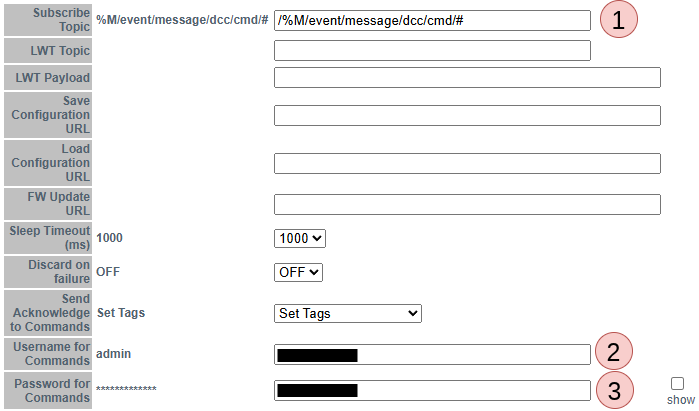
On the MQTT Configuration page, locate the Subscribe Topic field (1). Enter the Base Topic configured during device setup, followed by:
dcc/cmd/#
For example:
<BaseTopic>/dcc/cmd/#
Note: If the Cloud Type was selected as Inuatek-DCC in the Cloud configuration page, the subscribe topic is automatically inserted as /%M/dcc/cmd/#.
On the same page, you can also configure the username and password, just as done in the Cloud Configuration page (2 & 3).
Finally, click APPLY.
The device is now ready.
However, MQTT Two-way must be enabled in the DCC before commands can be sent.
Enabling Two-way on the DCC
To enable MQTT Two-way for the device, navigate to the IoT Administration page and find your device in the tree.
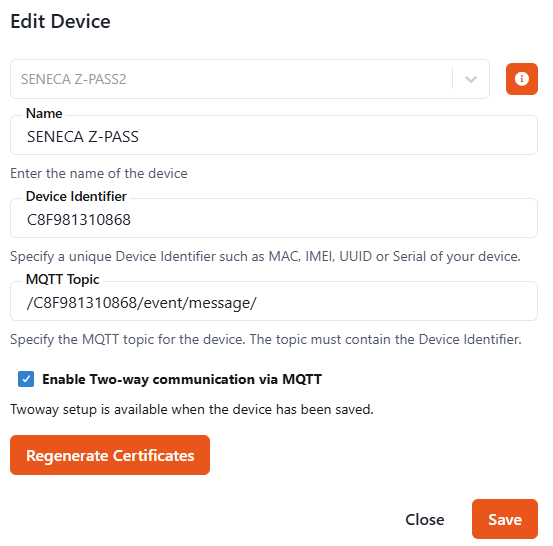
Right-click the device, and select Edit device
Enable Two-way access by clicking the "Enable Two-way communication via MQTT" switch, then click Save:
When the device has been saved, right-click it again.
A series of new options will appear. Fill out the credentials which were configured on the SENECA Z-PASS Web UI:
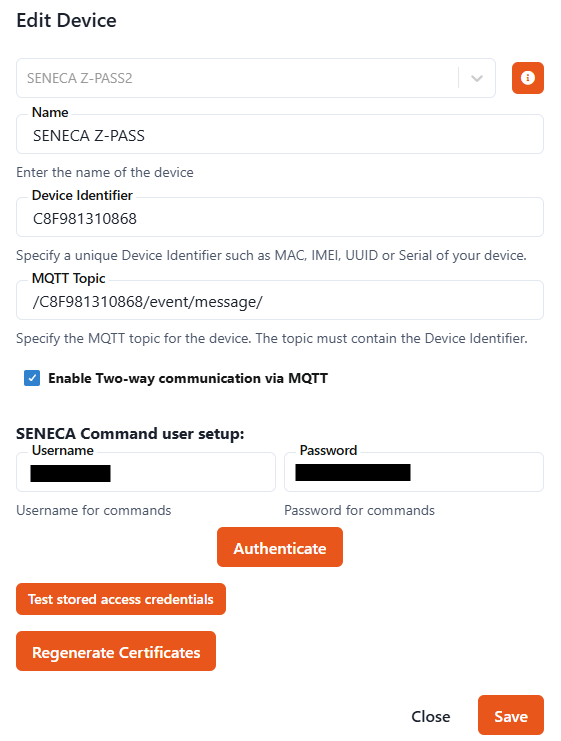
To test the entered crendentials, click the "Authenticate" button. If the credentials succesfully authenticated with the device, the credentials are stored to the DCC:

If the credentials did not authenticate, please confirm that the correct username and password was provided, and that the device is properly configured.

Note: The button "Test stored access crendentials" can be used later to test stored credentials without re-entering the credentials.
Next steps
If you get a green pop-up the device is ready to receive commands via MQTT. To write sample values, try out either the Control widget on Classic dashboards or the Two-way widgets found on Next-gen dashbords.